How to connect proxies
The line from the generator goes into the software you use. Here is where exactly, depending on the task, and how to make sure it works.
1. What a proxy line consists of
In any format there are four parts: the host gw.prokso.com (1), a port (2), a username (3) and a password (4) — all four are on the plan page in the “Access” block. The port sets the mode: 823 is HTTP(S) with a new IP per request, 824 is the same over SOCKS5, and ports 10000 to 20000 give a sticky IP. The generator fills all of this in for you.

2. Where to paste it
- Antidetect browser — in the profile's proxy settings. Guides: AdsPower, Dolphin Anty, Octo Browser, GoLogin.
- Regular browser — through system settings: Chrome, Firefox.
- Phone — in the Wi-Fi settings: iPhone, Android.
- Telegram — right in the app, SOCKS5: guide.
- Script — one line of code: Python, Node.js.
All supported software is listed on the guides page.
3. Check that the proxy works
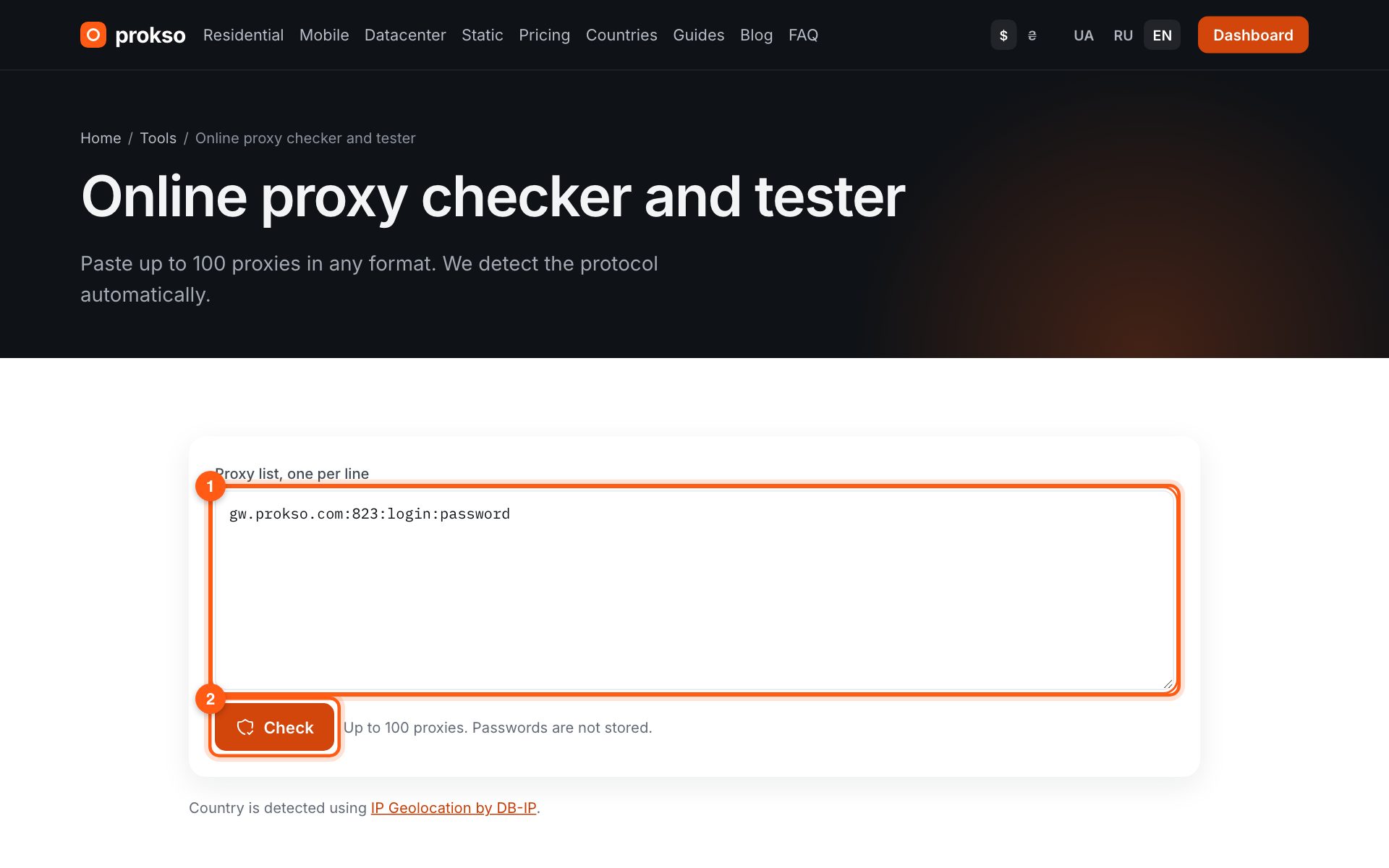
Open “My IP” in the browser or profile where the proxy is on: you should see the proxy's address and country, not your own. You can also test a line without any software — paste it into the proxy checker — into the field (1) — and click the button (2). It shows whether the proxy responds, its exit IP, country and response time.
4. If it does not work
- Error 407 — wrong username or password, or the traffic has run out. Copy the line from the generator again and check the remaining traffic.
- Error 403 — the site or port is closed for all customers; see the blocked websites page.
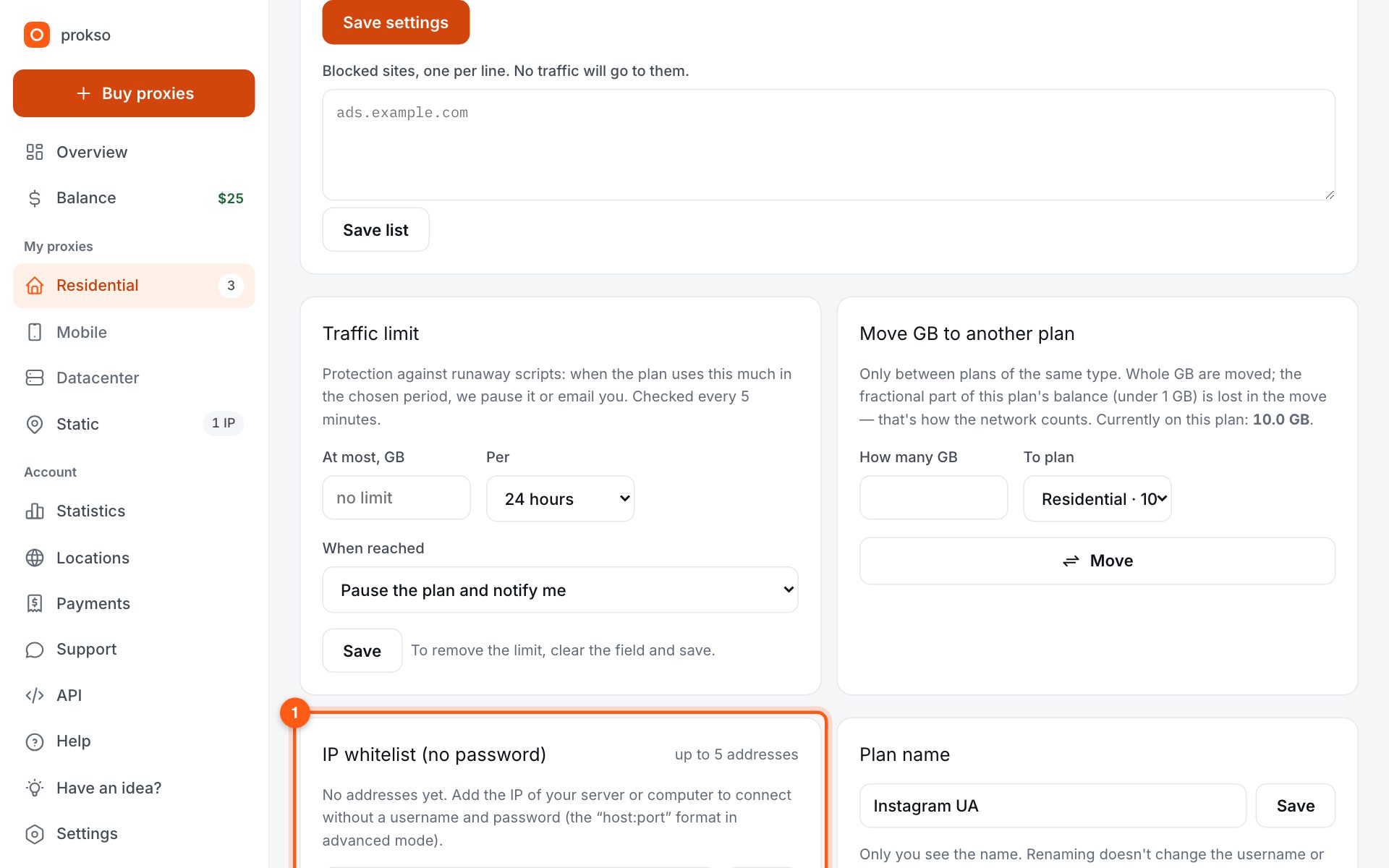
- Your software does not accept a password — add your IP address to the “IP whitelist” in the plan settings and connect without a username.
Every code is explained on the proxy error codes page.