Managing a plan and traffic
Everything you need after buying: add gigabytes, avoid overspending and set up access without a password.
1. Add gigabytes
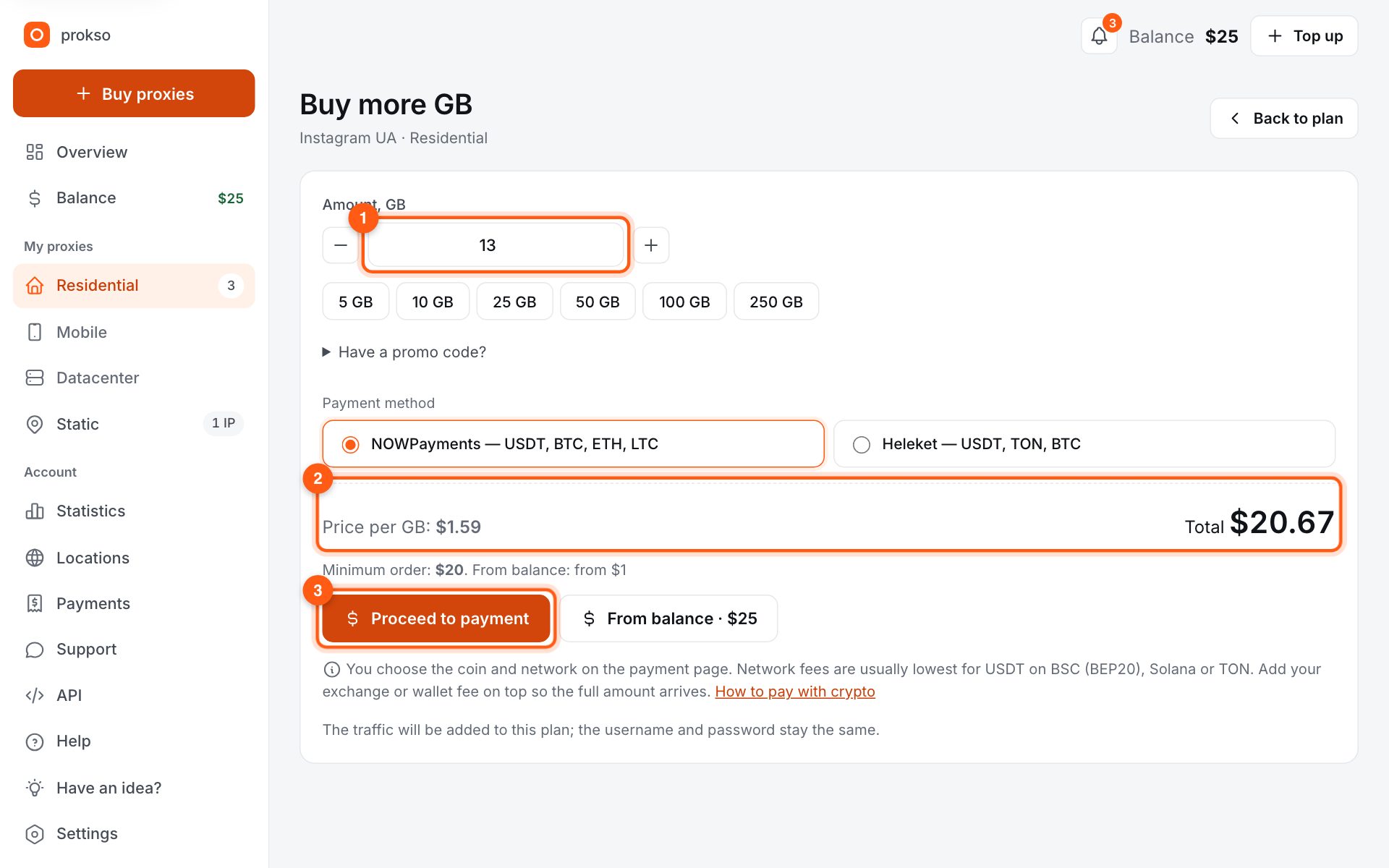
On the plan page click “Buy more GB”. Enter the volume (1), check the total (2) and pay with crypto (3) or from the balance. The traffic is added to the same plan: the username, password and the lines in your software stay the same.
2. Track your usage
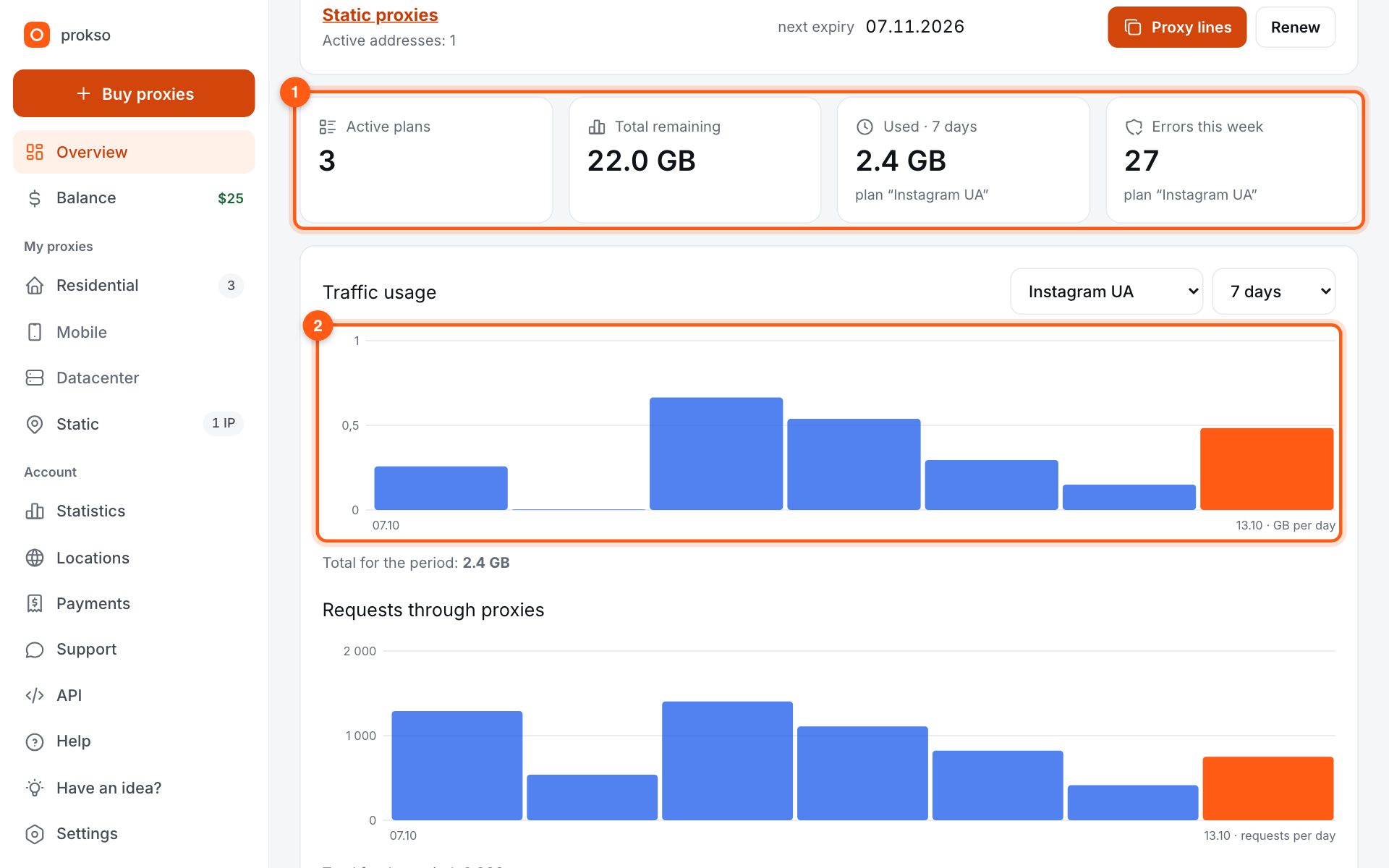
The “Overview” page shows the total remaining, usage for the period and the error count (1). The chart (2) shows usage by day, and the log below shows which sites the requests went to. When a plan drops below one gigabyte we send an email — if your address is confirmed.
3. Set a traffic limit
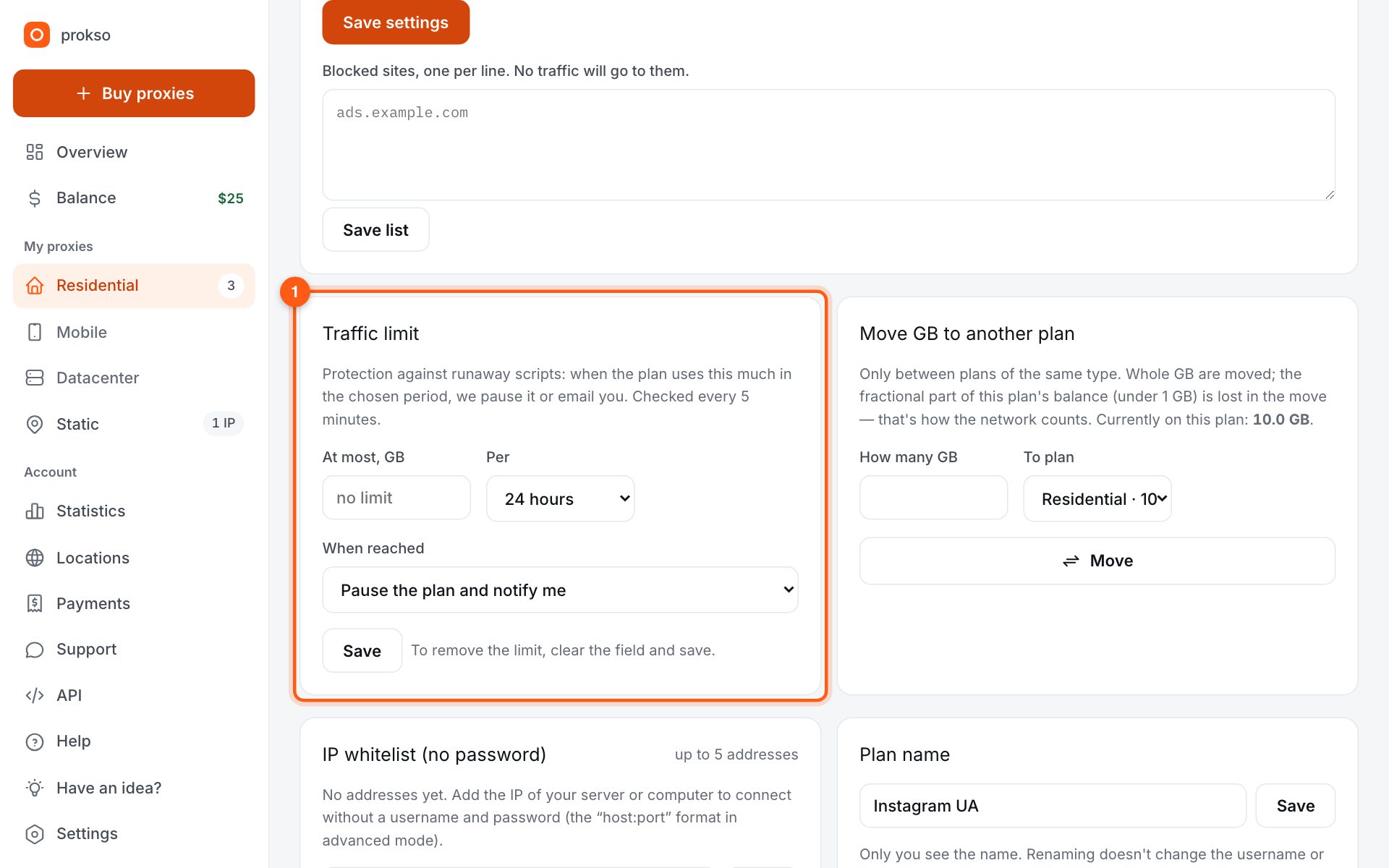
The “Traffic limit” block is on the plan page in both basic and advanced modes. Say how many gigabytes the plan may use per hour, day, week or 30 days and what happens next: pause the plan and notify you. It protects against a script bug that burns the whole balance overnight.
4. IP access instead of a password
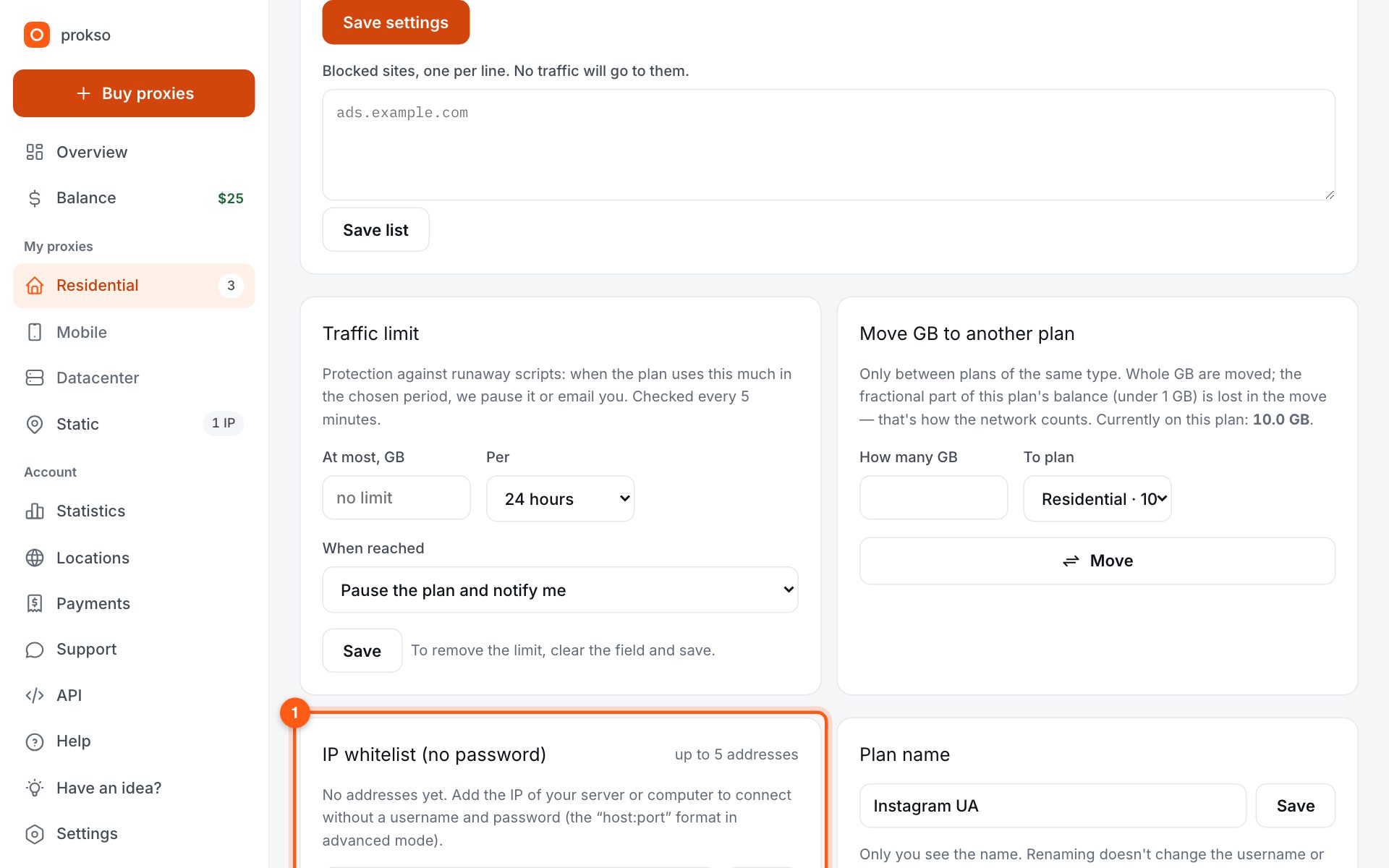
Some software cannot handle a username and password. For that there is the “IP whitelist (no password)” block: add up to 5 of your IP addresses and connect from them with no username. Your own address is shown on the “My IP” page.
5. Pause, new password, transfer
In the “Manage” block you can pause a plan: the lines stop working while the traffic is kept. “New password” immediately disconnects anyone who knew the old one. Unused gigabytes can be moved to another plan of the same type.