- Host
- gw.prokso.com
- Port
- 823 HTTP · 824 SOCKS5 — new IP per request · 10000–20000 sticky session, HTTP(S) and SOCKS5
- Username and password
- in your dashboard, on the plan page
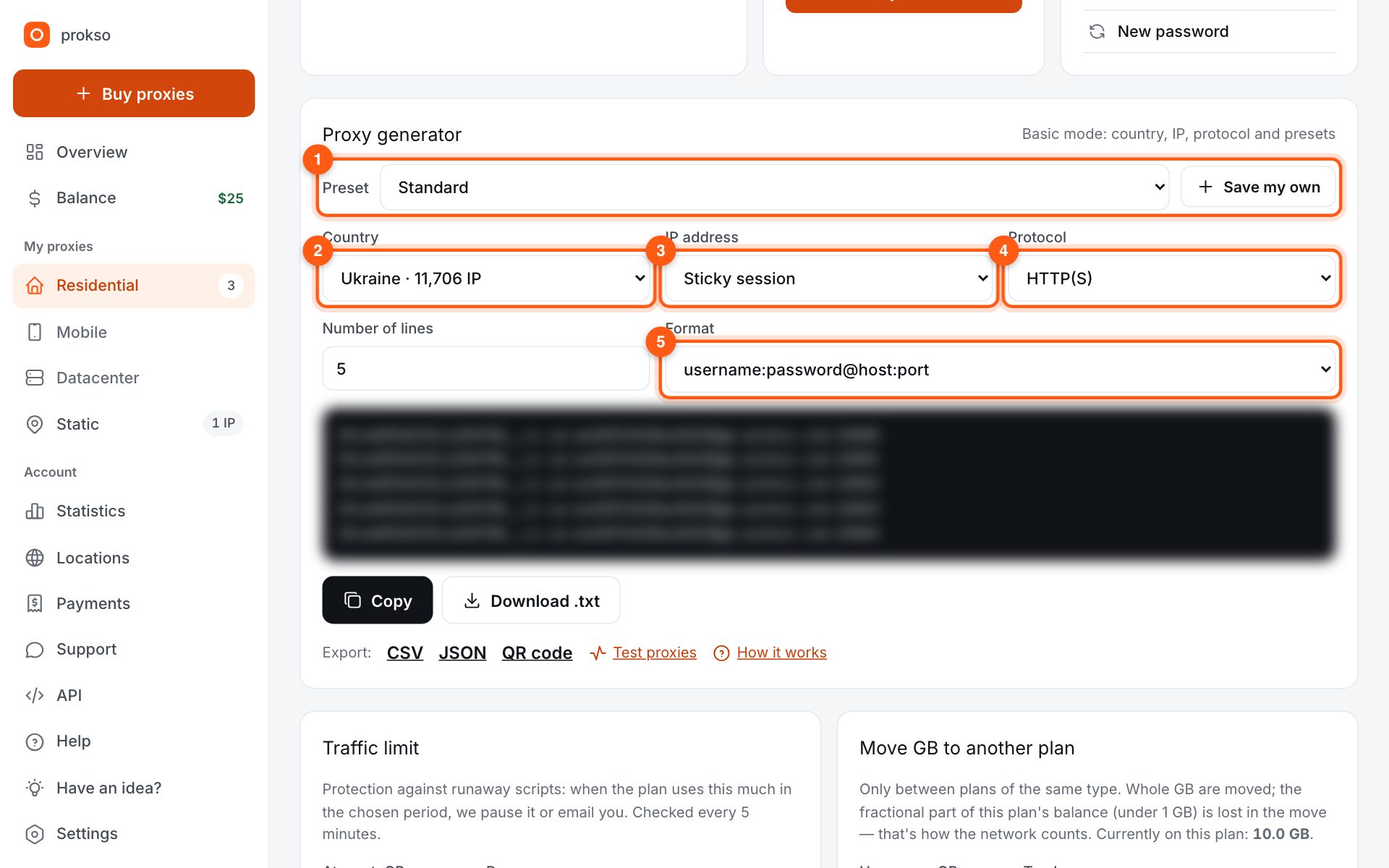
Your dashboard generates ready-made lines in the format you need: choose the country, IP type and protocol.
- Host gw.prokso.com, ports 823 (HTTP), 824 (SOCKS5), 10000–20000 (sticky sessions, HTTP or SOCKS5)
- The username and password are in your dashboard on the plan page
- After setup, check your IP on the My IP page
AdsPower takes a proxy as a single line: paste it into the Host:Port field and the app splits the host, port, username and password into its own fields. Below is how to prepare the lines, attach them to profiles and check that each profile goes online from the right IP.
Step 1. Generate lines in the AdsPower format
Open your plan in the dashboard and click the “AdsPower · Dolphin · Octo” preset in the generator. It switches to “Sticky session” mode right away. Change the format to host:port:username:password, which is how AdsPower reads a line. Set the number of lines to the number of profiles: each line has its own 10000–20000 port and its own IP.
Step 2. Open the Proxy section of a new profile
In the AdsPower main window click New Profile and go to the Proxy section. For an existing profile, open it for editing and find the same section.
Step 3. Choose Custom and the proxy type
Click Custom and pick HTTP or SOCKS5, the same type as in the generator. A sticky port works with both types, while 823 is HTTP only and 824 is SOCKS5 only.
Step 4. Paste the line and click Check Proxy
Paste the line into the Host:Port field. The other fields fill in by themselves. Click Check Proxy to see whether the proxy responds, then save the profile with OK.
Step 5. Look at the IP from inside the profile
Launch the profile with Open, and in that profile's window open the My IP page. It should show the IP and country from the generator, and WebRTC must not reveal your real address. In your regular browser the page shows your home IP, so it is no use for this check.
Which mode to pick for your task
For accounts you need a sticky port in the 10000-20000 range: it keeps one IP for the length of the session, from 1 to 120 minutes. Set the time with enough margin to cover all the work in the profile. If the session ends in the middle of a login, the site will see the address change.
Ports 823 and 824 change the IP on every request. In AdsPower they only suit profiles where you store nothing: a one-off check of search results, or viewing an ad from another country.
The country is set in the generator: it is written into the username, so there is no need to change it in AdsPower itself. Generate a new string and paste it in place of the old one.
If Check Proxy shows an error
- The type does not match the port. Port 823 works with HTTP only, and port 824 with SOCKS5 only. Sticky ports accept both types.
- Extra characters in the string. A space at the start or end of the username breaks authentication. Copy the string from the generator again.
- The plan has run out of traffic. Open the plan in your dashboard and check how much traffic is left: a proxy with no traffic left responds with an authentication error.
- Your network blocks the port. Office and guest networks sometimes close non-standard ports. Test the same string in the proxy checker: if it works there, the cause is in your network.
What a specific code means is explained on the proxy error codes page.
How to avoid wasting traffic
A profile spends traffic on everything it loads: pages, images, video, and background requests from extensions. Close the profiles you do not need and do not leave tabs with video open. You can estimate how many gigabytes your task will take in the traffic calculator.
FAQ
Which port should I use for an account?
A sticky-session port from 10000–20000 (“Sticky session” mode). The IP stays for 1 to 120 minutes (30 by default), and you can change that time. Ports 823 and 824 give a new IP for every request, which suits scraping, not accounts.
AdsPower didn't split the line into fields. What's wrong?
Usually the line was copied in another format, such as <code>username:password@host:port</code>. Go back to the generator, choose <code>host:port:username:password</code> and paste the line again. Or fill in the host, port, username and password by hand.
Can I skip the username and password?
Yes. Open your plan page in the dashboard and add your computer's IP to the IP whitelist (no password) block (up to 5 addresses per plan). Then AdsPower only needs the host and port.
Can I use one proxy for several AdsPower profiles?
Technically yes, but then the profiles will share an IP, and the site will link them to each other. For separate accounts, generate as many strings as you have profiles: each one has its own port and its own IP.
The IP in my profile changed. Is that normal?
Yes, if the session time ran out: a sticky session keeps one IP for 1 to 120 minutes. The session duration is set in the generator. For long work, set the maximum and do not leave the profile open when you are not using it.