- Host
- gw.prokso.com
- Port
- 823 HTTP · 824 SOCKS5 — new IP per request · 10000–20000 sticky session, HTTP(S) and SOCKS5
- Username and password
- in your dashboard, on the plan page
Your dashboard generates ready-made lines in the format you need: choose the country, IP type and protocol.
- Host gw.prokso.com, ports 823 (HTTP), 824 (SOCKS5), 10000–20000 (sticky sessions, HTTP or SOCKS5)
- The username and password are in your dashboard on the plan page
- After setup, check your IP on the My IP page
In GoLogin the quickest way to add a proxy is straight from the profile list, in the Location column. The app picks the protocol itself and colours the result: a green indicator means the proxy responds, red means it doesn't. For dozens of profiles there's a bulk import.
Step 1. Prepare a list for import
In the dashboard generator pick a country, “Sticky session” mode and HTTP(S) or SOCKS5. Format: host:port:username:password, which GoLogin accepts both one by one and as a list. Download the lines as a .txt file or copy them.
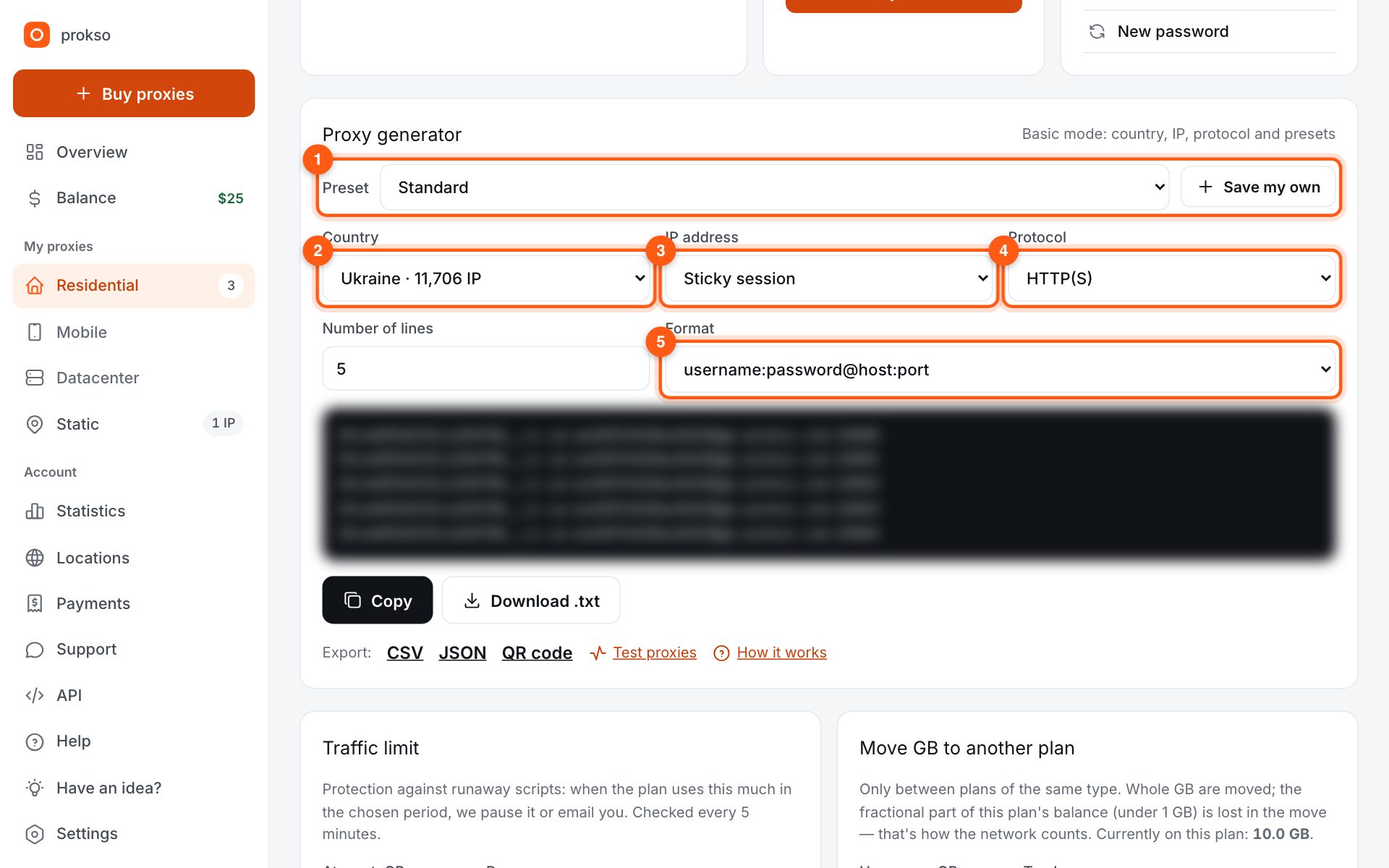
Step 2. Click + in the Location column
On the all-profiles page find the profile and click + in its Location column. The same option is in the profile settings: three dots → Settings → Proxy → Your proxy.
Step 3. Enter the details via the computer icon
Click the computer icon and fill in the IP (here it's gw.prokso.com), port, username and password. Click Connect. GoLogin picks the protocol itself; if it doesn't match the generator, change it by hand.
Step 4. Add the rest as a list
For many profiles, open Import proxies in the left menu and paste the whole list. Then tick the profiles and click Proxy in the bulk actions bar to hand out the addresses.
Step 5. Check the indicator and the IP in the profile
The proxy should show a green indicator. Then run the profile and open My IP in its window: the IP, country and WebRTC should all belong to the proxy. Your regular browser will show your real address, which is normal, so check inside the profile.
Why GoLogin picked the wrong protocol on its own
GoLogin detects the protocol from the proxy's response. Sticky ports 10000-20000 respond both as HTTP and as SOCKS5, so the program may pick either of the two. This is not an error: the connection will work. If you need a specific protocol, select it manually after pasting.
With ports 823 and 824 there is no choice: the first is HTTP only, the second is SOCKS5 only. If you set the other type, the indicator turns red.
Importing a list: what to keep in mind
- One line is one proxy. It is best to remove empty lines and trailing spaces before pasting.
- All lines must be in the same format. If some were copied differently, bring the list to a single format in the proxy format converter.
- The number of lines must match the number of profiles, otherwise several profiles will get the same IP.
If the indicator is green but the site does not open
A green indicator means the proxy is responding. It does not guarantee that a particular site will accept the request: every site has its own access rules. Look up the response code on the proxy error codes page: codes 403 and 429 come from the site, not from the proxy.
FAQ
The indicator is red. What now?
Check the protocol: port 823 works only with HTTP, 824 only with SOCKS5, and sticky-session ports 10000–20000 with the type chosen in the generator. Also make sure the plan is active and the username was copied in full.
Can I skip the username and password?
Yes. Open your plan page in the dashboard and add your computer's IP to the IP whitelist (no password) block (up to 5 addresses per plan). Then GoLogin only needs the host and port.
Which port keeps the IP from changing?
A sticky-session port (10000–20000) in “Sticky session” mode. The IP stays for 1 to 120 minutes, 30 by default. Ports 823/824 change the IP on every request, so they don't suit accounts.
Does the proxy work in GoLogin cloud profiles?
Yes, the string is exactly the same. If you use the IP whitelist instead of a username and password, keep in mind that a cloud profile is not launched from your computer, so having your IP in the IP whitelist will not help it. For such profiles, keep the username and password.
Do I need to set the language and geolocation manually?
Usually not: GoLogin adjusts them to the external IP. Manual values only make sense when you know for certain that the site needs a different combination.