- Host
- gw.prokso.com
- Port
- 823 HTTP · 824 SOCKS5 — new IP per request · 10000–20000 sticky session, HTTP(S) and SOCKS5
- Username and password
- in your dashboard, on the plan page
Your dashboard generates ready-made lines in the format you need: choose the country, IP type and protocol.
- Host gw.prokso.com, ports 823 (HTTP), 824 (SOCKS5), 10000–20000 (sticky sessions, HTTP or SOCKS5)
- The username and password are in your dashboard on the plan page
- After setup, check your IP on the My IP page
A step-by-step guide to connecting Prokso proxies in Mozilla Firefox. It takes a few minutes.
Step 1. Get the proxy details from your dashboard
Open your plan and copy the host gw.prokso.com, port, username and password. Port 823 is HTTP and 824 is SOCKS5 (both give a new IP for every request); ports 10000–20000 keep one IP (sticky session) for up to 120 minutes and work as both HTTP and SOCKS5 (each port is a separate address). Set the country in the username: username__cr.ua.

Step 2. Open the network settings
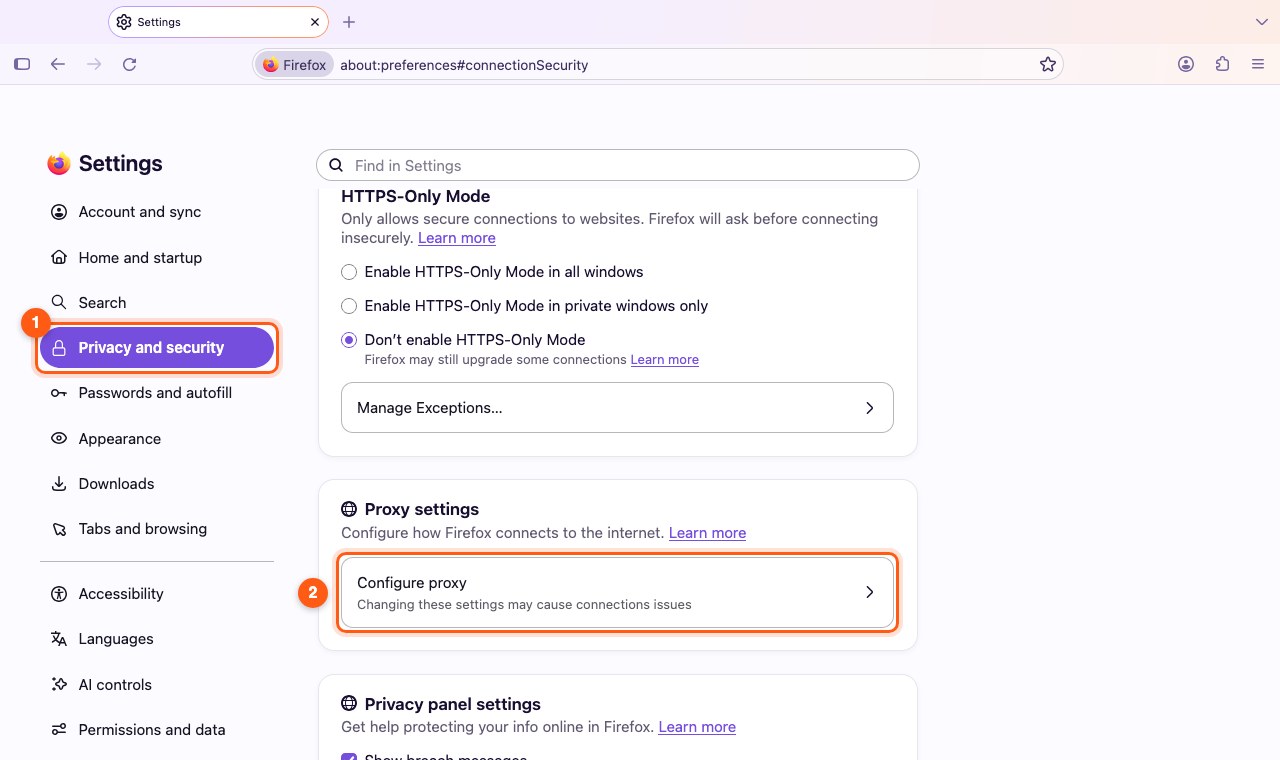
In Firefox open Settings → Privacy and security, find the Proxy settings block and click Configure proxy. In older versions it's General → Network Settings → Settings.
Step 3. Choose manual configuration
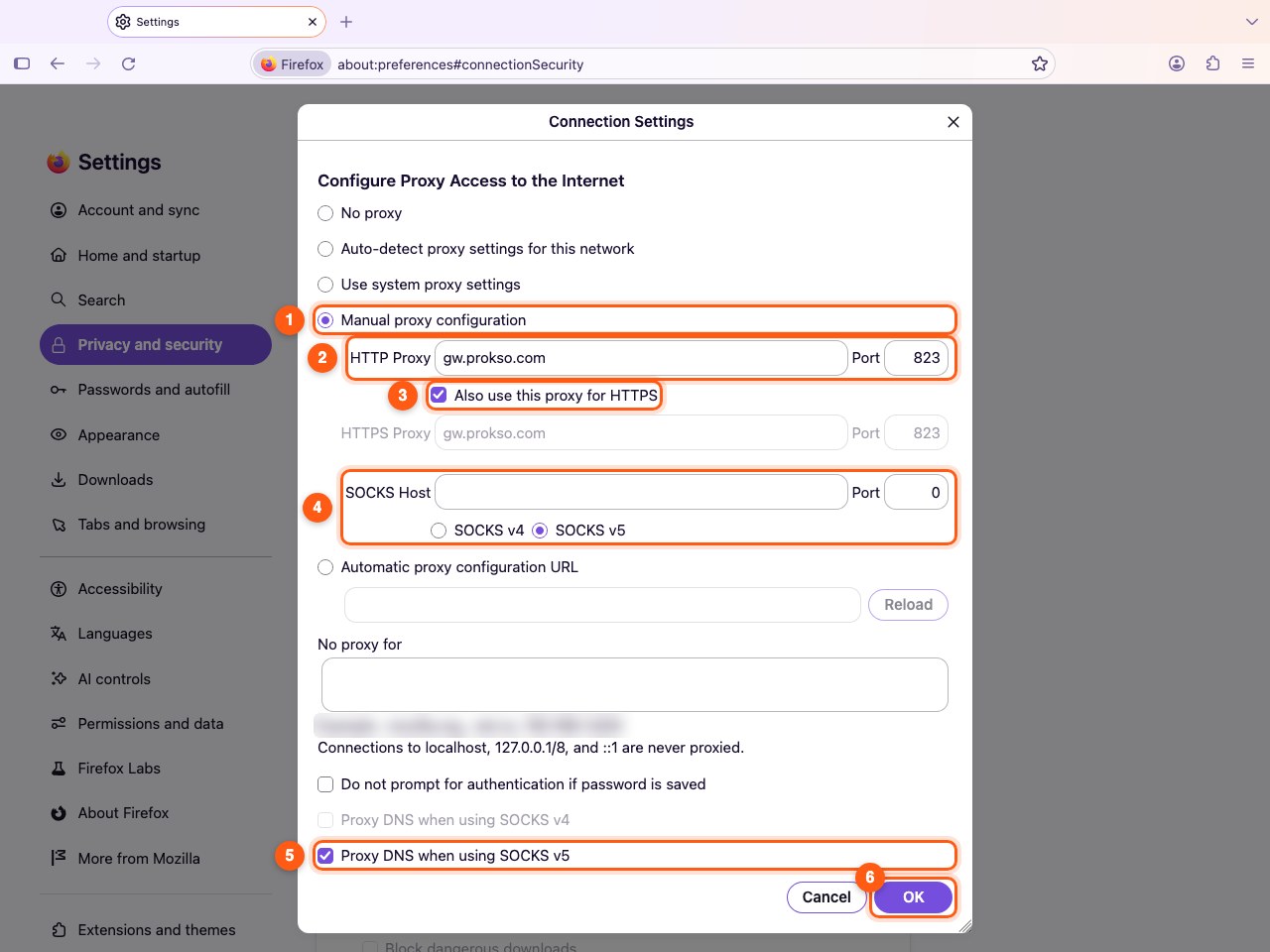
Select Manual proxy configuration. For HTTP enter gw.prokso.com and port 823 (or a sticky 10000–20000 port) and tick Also use this proxy for HTTPS. Fill in SOCKS Host (SOCKS v5, port 824 or a sticky 10000–20000 port) only if you've switched on the IP whitelist: that's the only way SOCKS5 works here. With a username and password, use HTTP (823 or 10000–20000) or the FoxyProxy extension.
Step 4. Turn on DNS through the proxy
For SOCKS5 tick Proxy DNS when using SOCKS v5 so websites don't see your real DNS server. Click OK.
Step 5. Enter the username and password
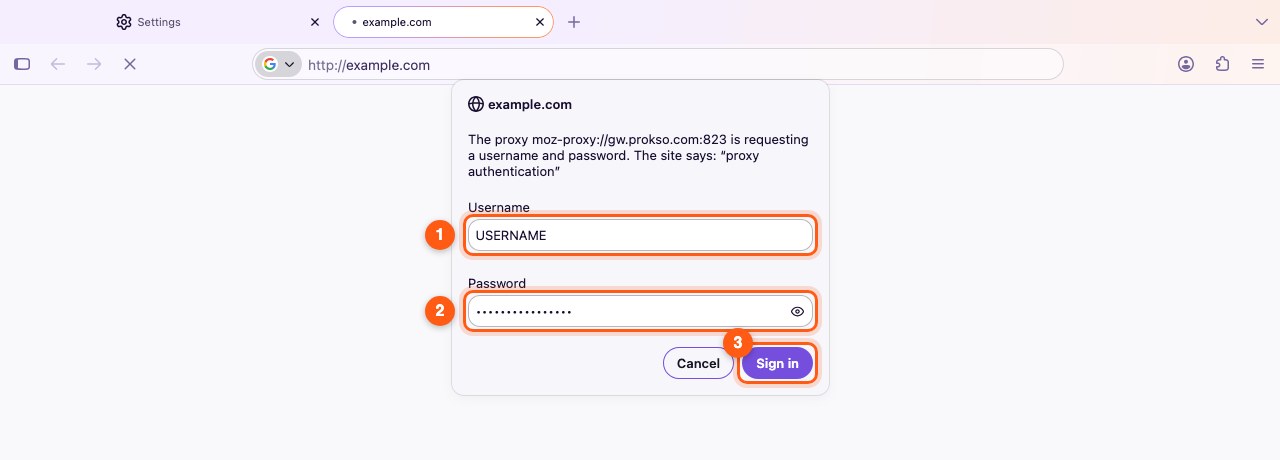
For an HTTP proxy Firefox asks for the username and password on the first request — paste them from your dashboard and save them if you like. There's no such prompt for SOCKS5: it works with the IP whitelist only.
Step 6. Check that it works
Open the My IP page: it should show the proxy's IP address and country, not yours. If the connection fails, double-check the port and protocol, and look up error codes on the Error codes page.
How a proxy in Firefox differs from other browsers
Firefox has its own network settings. A proxy set here applies to Firefox only: Chrome, your mail program, and system updates keep working directly and do not spend your plan's traffic. This is convenient when you need a proxy for one task while the rest of your work goes on as usual.
If you select "Use system proxy settings" in the same window, Firefox will start taking the proxy from the system, the way Chrome does. Check which option is selected before you look for an error.
If Firefox does not open sites
- "Also use this proxy for HTTPS" is not checked. In that case ordinary HTTPS sites bypass the proxy or do not open at all.
- SOCKS5 with a username and password. Firefox does not ask for a password for SOCKS5. Use HTTP or turn on access by IP in your dashboard.
- The protocol ended up in the host field. Enter
gw.prokso.comwithouthttp://. - An old password is saved. After you change the plan password, Firefox keeps filling in the previous one. Delete the saved entry in the browser's password manager and enter the new one.
- The plan has run out of traffic. The remaining traffic is shown in your dashboard.
The error code on the page will point to the cause: it is explained on the proxy error codes page.
Several proxies in one Firefox
The built-in settings store one proxy for the whole browser. To switch between countries or send only some sites through the proxy, install the FoxyProxy extension: in Firefox it can also handle SOCKS5 with a username and password.
FAQ
Why does Firefox keep asking for the password?
It asks after a restart if the password isn't saved. Choose to save it when Firefox asks.
Does the proxy work in a Firefox private window?
Yes. A private window uses the same network settings as a regular one.
Do I need to turn on DNS through the proxy for HTTP?
No, that checkbox applies to SOCKS5 only. With an HTTP proxy, the site name is resolved by the proxy anyway.
How do I quickly turn the proxy off?
In the same "Network Settings" window, select "No proxy" and click "OK". The proxy details will stay in the fields, and next time you only need to select manual proxy configuration again.