The proxy generator
The generator builds ready-to-use connection lines for your software. You pick the country, mode and format, then copy the result.
1. What is on the plan page
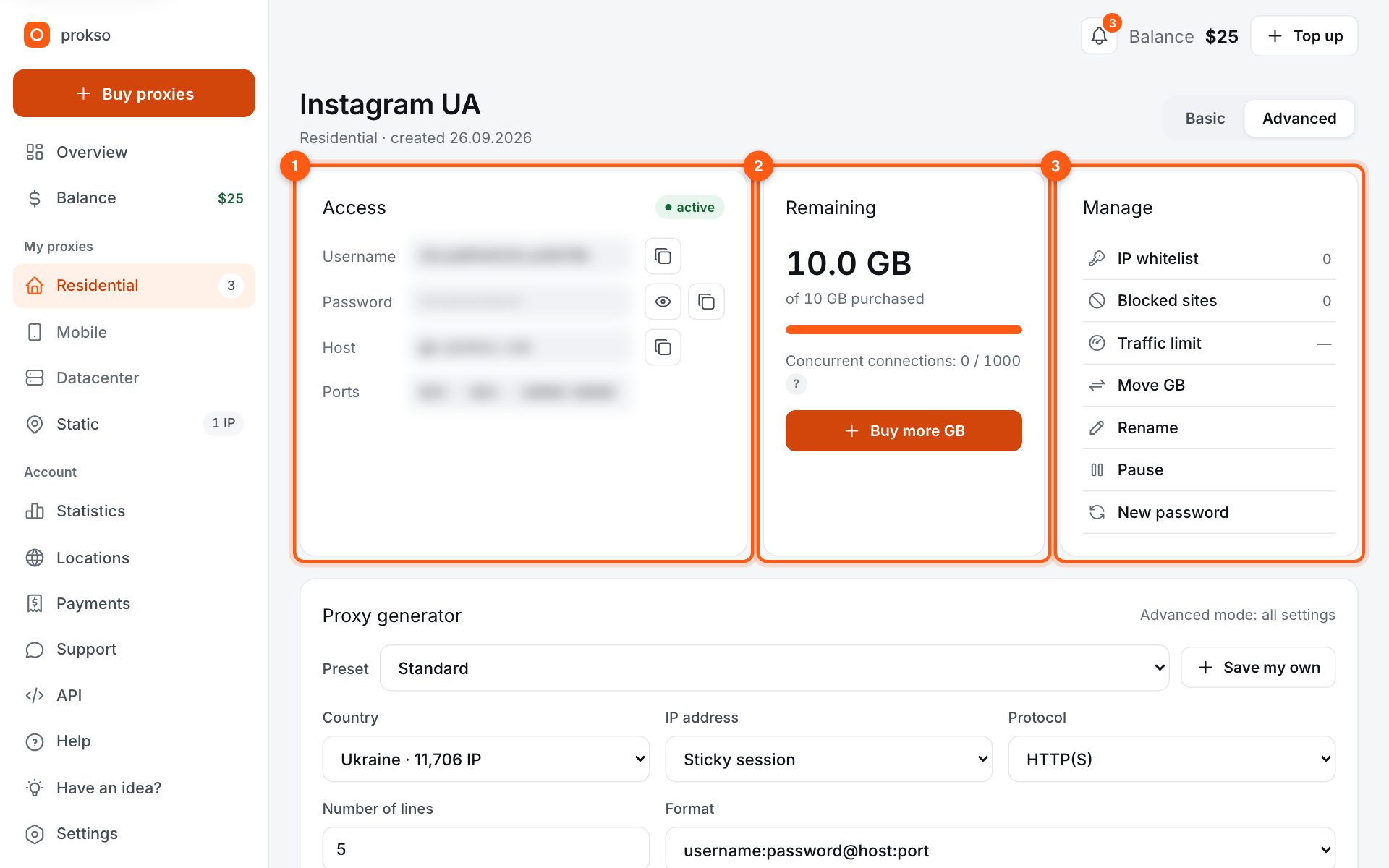
Open a plan from the menu. At the top are three blocks: “Access” (1) — username, password, gateway address and ports; “Remaining” (2) — how many gigabytes are left and the “Buy more GB” button; “Manage” (3) — IP access, limit, pause, new password.
2. Set up the generator
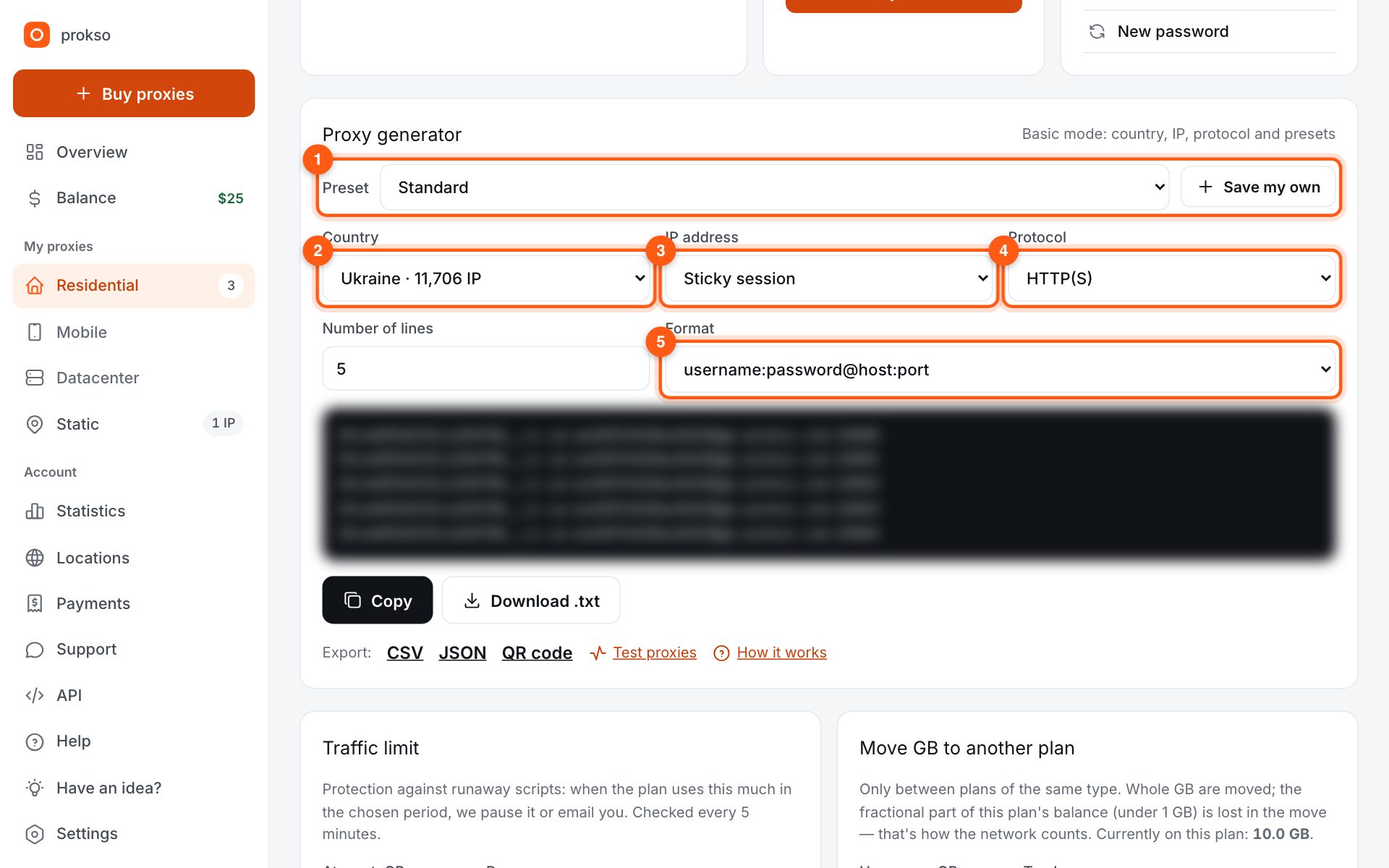
The generator is below. Start with a preset (1): “AdsPower · Dolphin · Octo”, “Instagram · TikTok” or “Scraping” apply suitable settings at once. Then choose the country (2) — it is free. IP address (3): “Rotating (new IP per request)” for data collection, “Sticky session” for accounts. Protocol (4): most software understands HTTP(S); SOCKS5 is needed by Telegram, for example. Format (5) is the shape of the line your software expects.
3. Copy the lines
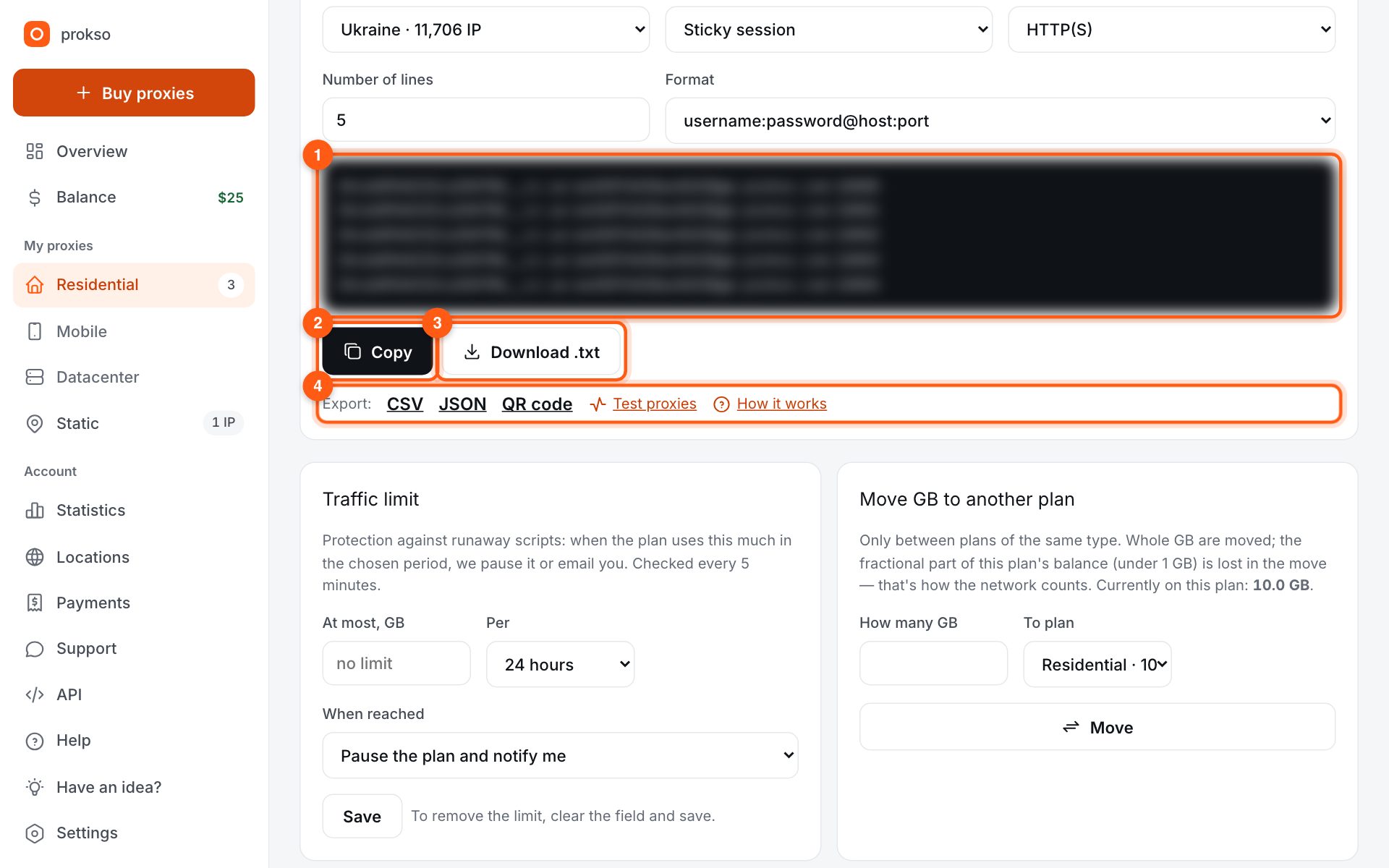
The finished lines appear in the dark box (1) and refresh as soon as you change anything. “Number of lines” sets how many you get: one per profile or thread. Click “Copy” (2) or “Download .txt” (3). In sticky mode each line has its own port, and therefore its own IP.
Below the buttons (4) is Export: CSV and JSON for software, and a QR code to move a proxy to your phone with the camera (for SOCKS5 it opens straight in Telegram). If you set the same options every time, click “Save my own” in the presets row — next time they apply in one click.
4. Basic and advanced modes
The switch is at the top of the page. Basic shows only the essentials. Advanced adds city, ISP, ZIP code, several countries at once and a sticky session length from 1 to 120 minutes. Note that traffic with precise geo — a city or ISP — counts double.