- Host
- gw.prokso.com
- Port
- 823 HTTP · 824 SOCKS5 — new IP per request · 10000–20000 sticky session, HTTP(S) and SOCKS5
- Username and password
- in your dashboard, on the plan page
Your dashboard generates ready-made lines in the format you need: choose the country, IP type and protocol.
- Host gw.prokso.com, ports 823 (HTTP), 824 (SOCKS5), 10000–20000 (sticky sessions, HTTP or SOCKS5)
- The username and password are in your dashboard on the plan page
- After setup, check your IP on the My IP page
A step-by-step guide to connecting Prokso proxies in Telegram. It takes a few minutes.
Step 1. Get the proxy details from your dashboard
Open your plan and copy the host gw.prokso.com, port, username and password. Port 823 is HTTP and 824 is SOCKS5 (both give a new IP for every request); ports 10000–20000 keep one IP (sticky session) for up to 120 minutes and work as both HTTP and SOCKS5 (each port is a separate address). Set the country in the username: username__cr.ua.

Step 2. Get a sticky SOCKS5 port
In the dashboard generator choose a country, the SOCKS5 protocol and “Sticky session” mode. You'll get a line with a 10000–20000 port tied to one IP. Don't use ports 823 or 824 for Telegram: they change the IP on every request, while a messenger account needs a stable address.
Step 3. Open the proxy settings
On Android: Settings → Data and Storage → Proxy Settings at the bottom of the page. On iPhone the proxy item is also under Data and Storage. In Telegram Desktop: Settings → Advanced → Connection type → Use custom proxy. In the Mac app: Data and Storage → Use Proxy. Names may differ slightly between versions.
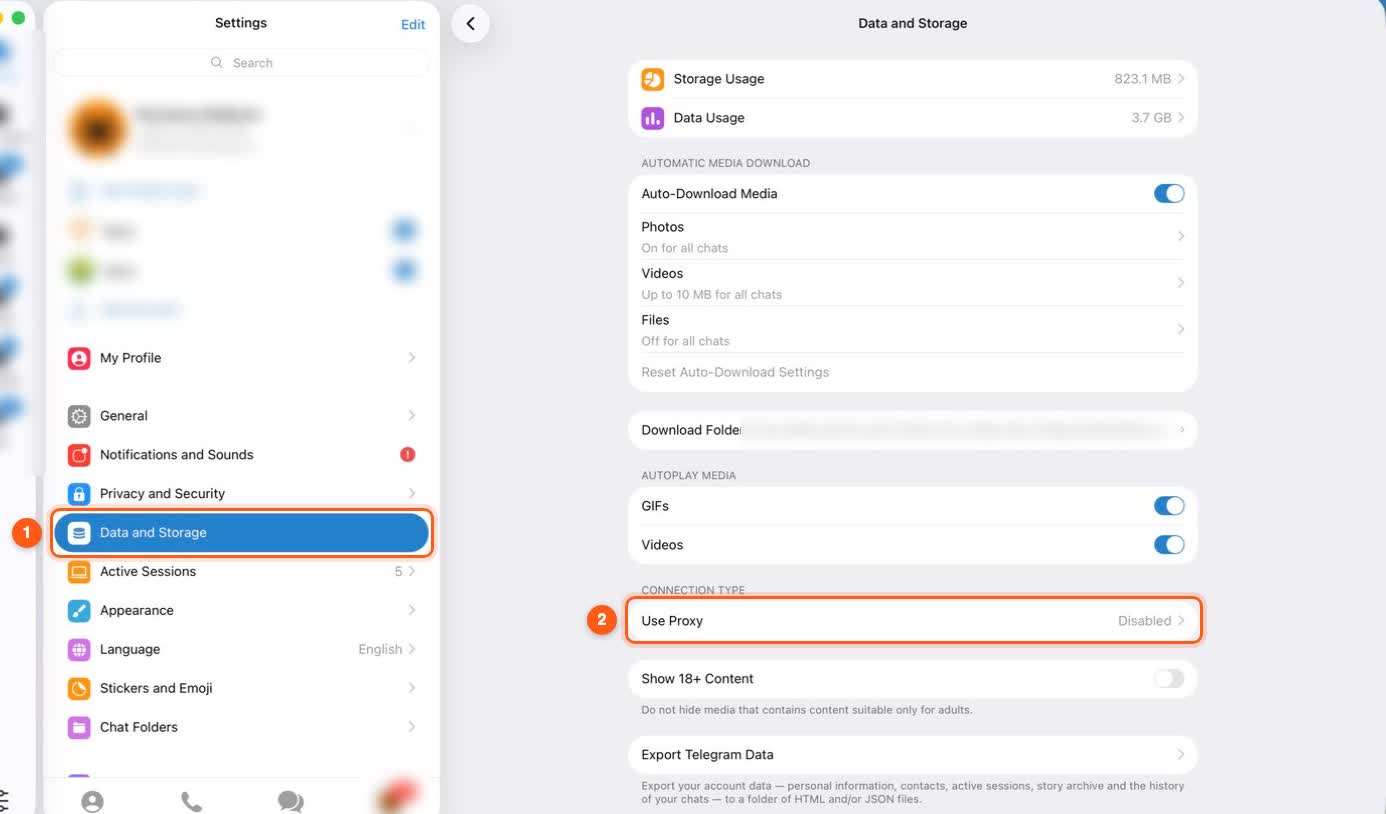
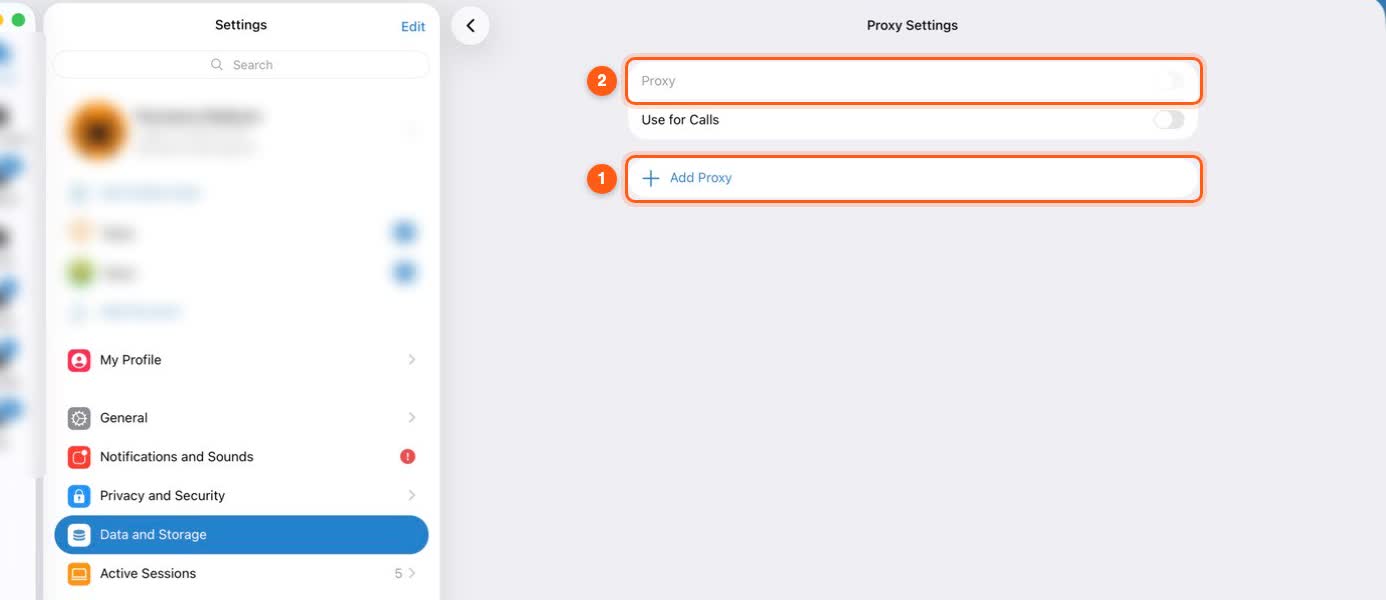
Step 4. Add a SOCKS5 proxy
Tap Add Proxy and pick SOCKS5, not MTProto, at the top of the form. Server gw.prokso.com, the port from your line, then the username and password from your dashboard. Copy them without spaces at the start or end, then save.
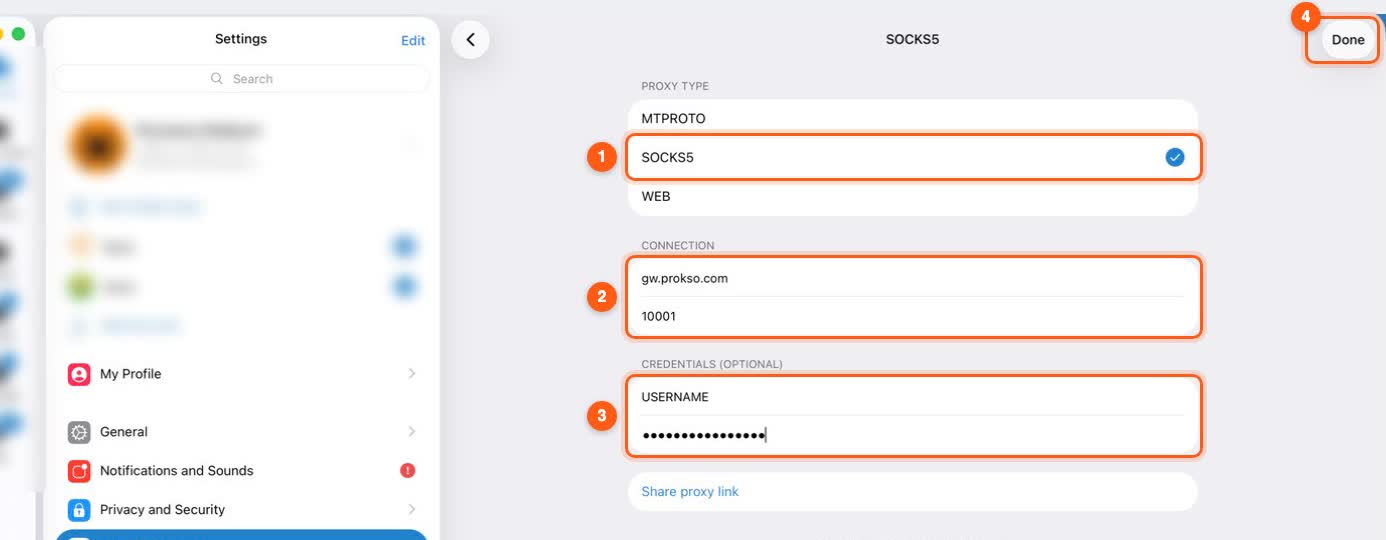
Step 5. Switch the proxy on
Turn on Use Proxy and select the server you added in the list. If there are several, Telegram uses the selected one. For a second account generate a separate sticky port so each account has its own IP.
Step 6. Check the status in Telegram
Check inside Telegram, not in a browser: the browser doesn't use this proxy and will show your own IP. In the proxy list the server should show Connected. If it shows another status, double-check the port, the SOCKS5 type and the username and password, and look up error codes on the Error codes page.
What a proxy in Telegram does and does not do
A proxy set in the Telegram settings applies to Telegram only. The browser and other apps keep working directly, and no plan traffic is spent on them.
Messages, media loading, and channels go through a SOCKS5 proxy. Telegram sets up calls separately, so you should not count on them going through the proxy.
If the status is not "Connected"
- MTProto is selected. That is a different proxy type. You need SOCKS5.
- The wrong port. For an account, take a sticky port in the 10000-20000 range from the generator. Port 823 is HTTP, and it will not work with the SOCKS5 type.
- A space in the username or password. The fields in Telegram do not show it clearly: clear them and paste again.
- Your network blocks the port. Test the same string in the proxy checker from another device or another network.
- The plan has run out of traffic. The remaining traffic is shown in your dashboard.
Several accounts
In the Telegram app there is one proxy for all the accounts you have added: when you switch between them, you stay on the same IP. If the accounts need different addresses, spread them across different devices or different copies of the app and give each one its own sticky port.
For a messenger, set the session duration to the maximum, 120 minutes. When the session ends, a new IP is assigned to the port. Telegram reconnects on its own, and you do not need to change the string.
FAQ
Does an MTProto proxy work?
No, we provide SOCKS5 and HTTP. Choose SOCKS5 — Telegram supports it on phones and desktops.
Do calls work through the proxy?
No. Calls need UDP, which doesn't pass through our proxies. Messages, photos, videos and voice notes work.
How much traffic does Telegram use?
Text uses very little; most traffic comes from photos, video and voice. Turn off media auto-download to save gigabytes.
How do I switch the proxy off quickly?
Turn off Use Proxy in the same settings — Telegram goes direct right away.
Can I share the proxy with a link?
Telegram can create a link to a proxy, but the link includes the username and password. Anyone who has the link will spend your plan's traffic. Do not post it in chats or channels.
Why is Telegram slower with a proxy?
The request goes through an exit address in the selected country, and residential and mobile addresses are slower than datacenter ones. For a messenger this is usually unnoticeable, but it shows when loading large files.