- Host
- gw.prokso.com
- Port
- 823 HTTP · 824 SOCKS5 — new IP per request · 10000–20000 sticky session, HTTP(S) and SOCKS5
- Username and password
- in your dashboard, on the plan page
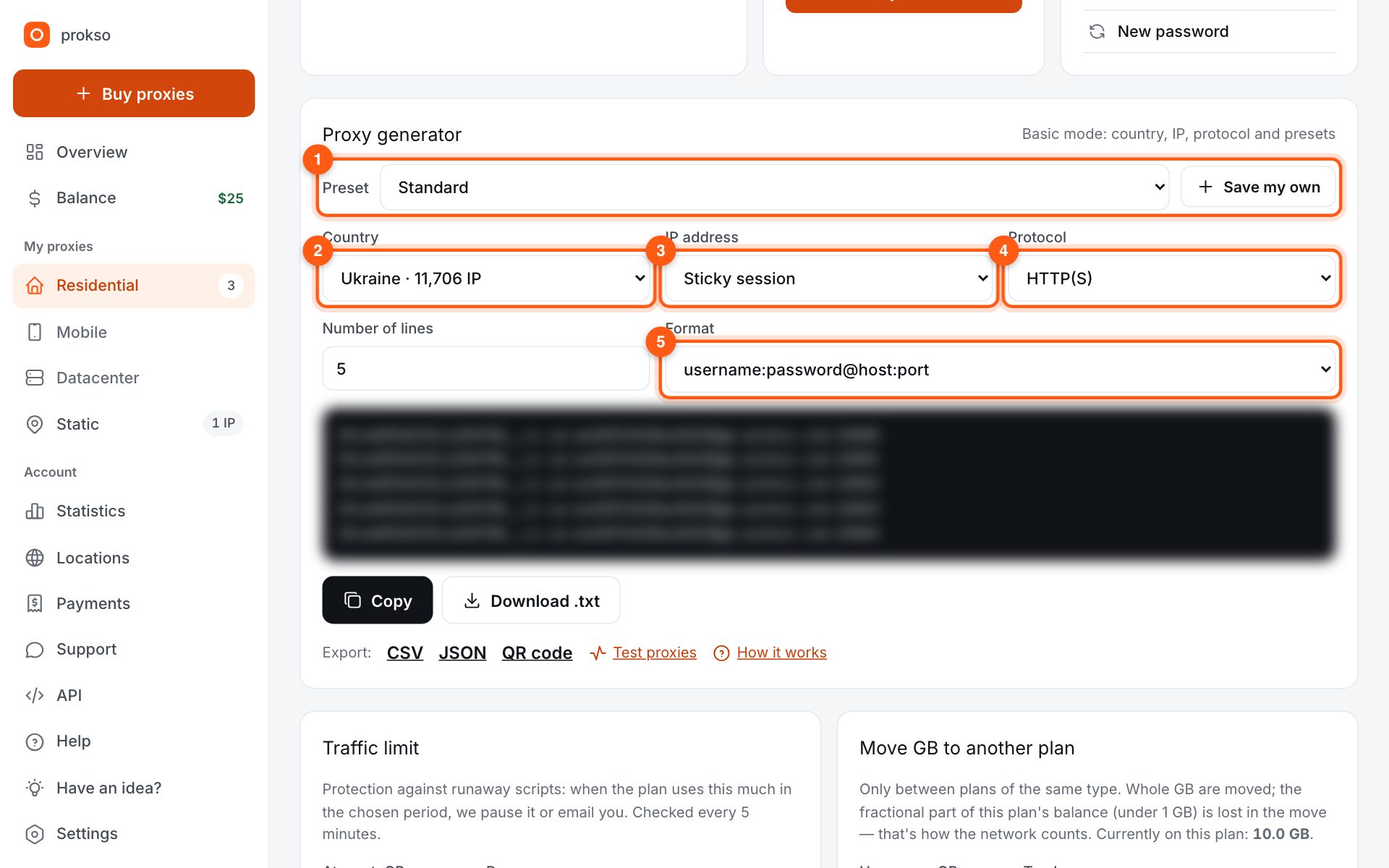
Your dashboard generates ready-made lines in the format you need: choose the country, IP type and protocol.
- Host gw.prokso.com, ports 823 (HTTP), 824 (SOCKS5), 10000–20000 (sticky sessions, HTTP or SOCKS5)
- The username and password are in your dashboard on the plan page
- After setup, check your IP on the My IP page
Dolphin Anty understands a proxy line in several common formats, and if you put the protocol at the start, it detects the type by itself. You can enter a proxy right while creating a profile, or first collect proxies on the Proxy screen and hand them out to profiles from the list.
Step 1. Take lines with the protocol in front
In the dashboard open your plan, and in the generator pick a country, “Sticky session” mode and HTTP(S) or SOCKS5. Format: protocol://username:password@host:port. With an http:// or socks5:// prefix Dolphin won't get the type wrong. One line per profile.
Step 2. Create a profile and choose New Proxy
On the Browser Profiles screen click Create profile and scroll to the Proxy block. Choose New Proxy and paste the line. host:port:username:password and username:password@host:port work too.
Step 3. Check the line with the arrows
Click the two opposite arrows to the right of the line. Dolphin tests the connection and shows the proxy's country and time zone. If the country is wrong, check which one you picked in the generator.
Step 4. Collect proxies on the Proxy screen
With many profiles, open the Proxy screen in the side menu and click Add Proxy. Saved proxies are then picked in a profile via Select a proxy. On paid plans you can tick several profiles and assign proxies to all of them with Change Proxy.
Step 5. Open My IP in the running profile
Start the profile. In the window Dolphin opens, go to the My IP page and compare the IP, country and WebRTC. If the address isn't the one from the generator, the profile is running without a proxy, so go back to the Proxy block.
How many strings to prepare and how to keep them apart
Each profile needs its own string with a separate sticky port. It helps to name proxies after their accounts right on the "Proxy" screen: once you have dozens of strings, you can no longer tell them apart by host and port alone.
If your profiles work with different countries, generate the strings in separate batches by country and label them straight away. The country is written into the username, and it is not obvious at a glance from the string itself.
If the arrow check fails
- No protocol at the start of the string. Without
http://orsocks5://, Dolphin may detect the type incorrectly. Add the protocol or select it manually. - The protocol does not fit the port. 823 is HTTP only, 824 is SOCKS5 only; sticky ports 10000-20000 work with both.
- Special characters in the password. In the format with
@, characters such as@and:in the password break the parsing of the string. Use thehost:port:username:passwordformat or convert the string in the proxy format converter. - The traffic has run out. The remaining traffic is shown on the plan page in your dashboard.
What to check in a profile besides the IP
The IP is only part of the picture. A site compares it with the time zone, the language, and the address exposed through WebRTC. In a running profile, open the WebRTC leak test: your real address must not appear there. The time zone and language should match the proxy country.
FAQ
HTTP or SOCKS5 for Dolphin?
Both work. Sticky-session ports 10000–20000 accept both HTTP and SOCKS5. If you use rotation, remember that 823 is HTTP only, 824 is SOCKS5 only, and the IP changes on every request.
The arrows show an error. What should I check?
Whether the protocol prefix matches the port, whether the username and password contain spaces, and whether the plan is paused in the dashboard. Error codes are explained on the Error codes page.
How do I remove a proxy from a profile without deleting it?
In the Proxy column click the pencil and choose No proxy. The proxy itself stays in the list on the Proxy screen.
Do I need to change the proxy in a profile when the session ends?
No. The string stays the same: the port simply gets a new IP assigned to it. You only need to change the string if you want a different country or a different proxy type.
Which proxy type should I choose for Dolphin profiles?
It depends on the site. Mobile and residential addresses look like ordinary users, while datacenter ones are cheaper and faster but easier to spot. A comparison of the types and their prices is on the <a href="/en/pricing">pricing</a> page.