- Host
- gw.prokso.com
- Port
- 823 HTTP · 824 SOCKS5 — new IP per request · 10000–20000 sticky session, HTTP(S) and SOCKS5
- Username and password
- in your dashboard, on the plan page
Your dashboard generates ready-made lines in the format you need: choose the country, IP type and protocol.
- Host gw.prokso.com, ports 823 (HTTP), 824 (SOCKS5), 10000–20000 (sticky sessions, HTTP or SOCKS5)
- The username and password are in your dashboard on the plan page
- After setup, check your IP on the My IP page
A step-by-step guide to connecting Prokso proxies in Safari. It takes a few minutes.
Step 1. Get the proxy details from your dashboard
Open your plan and copy the host gw.prokso.com, port, username and password. Port 823 is HTTP and 824 is SOCKS5 (both give a new IP for every request); ports 10000–20000 keep one IP (sticky session) for up to 120 minutes and work as both HTTP and SOCKS5 (each port is a separate address). Set the country in the username: username__cr.ua.

Step 2. Open the proxy settings
Safari on a Mac uses the system proxy. In Safari open Settings → Advanced and click Change Settings… next to Proxies — the system network settings open. The same screen: System Settings → Network → your connection → Details → Proxies.
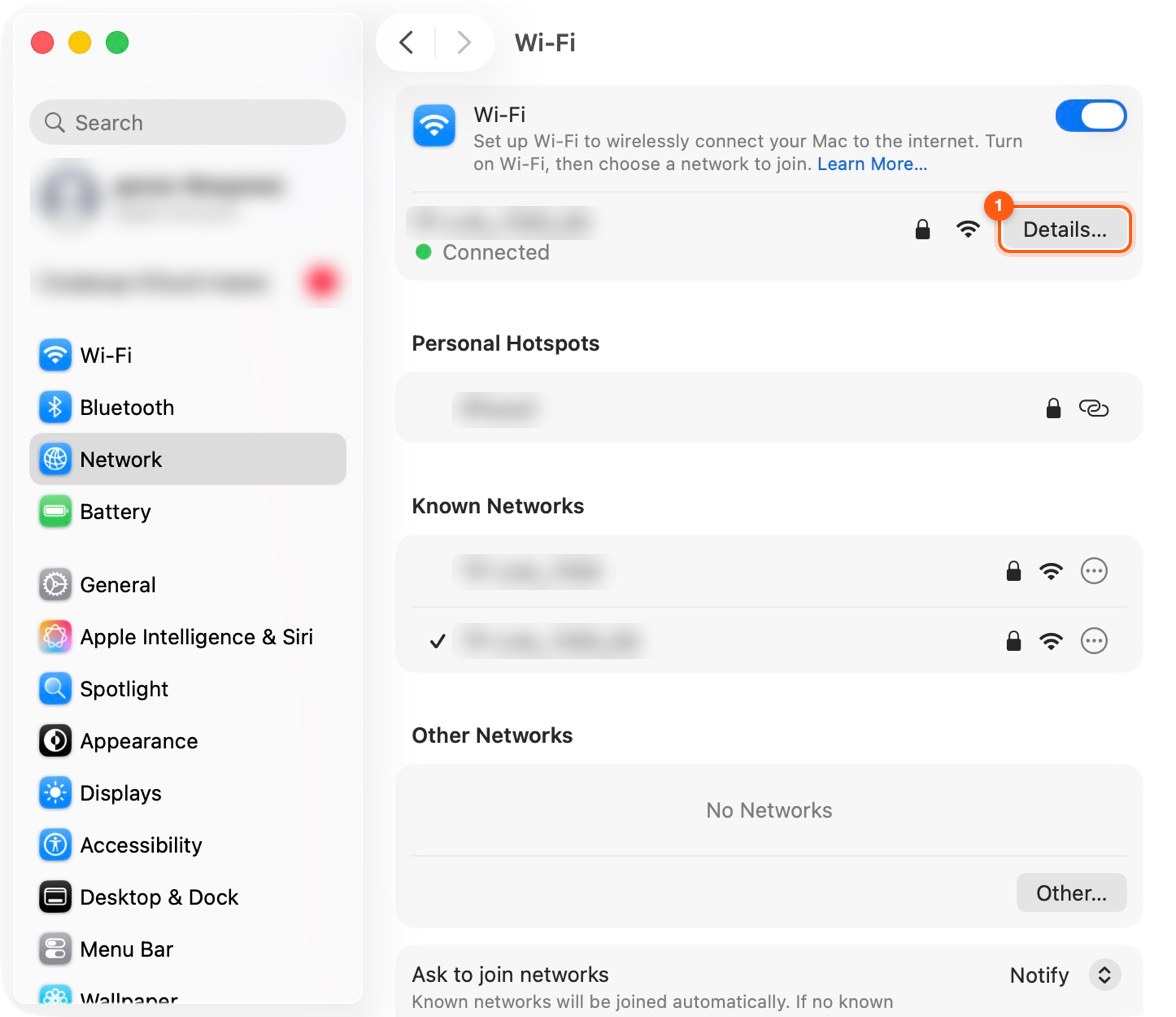
Step 3. Turn on the web proxy
Turn on Web Proxy (HTTP) and Secure Web Proxy (HTTPS). For each, enter the server gw.prokso.com and port 823 (or a sticky port 10000–20000 if you need one IP).
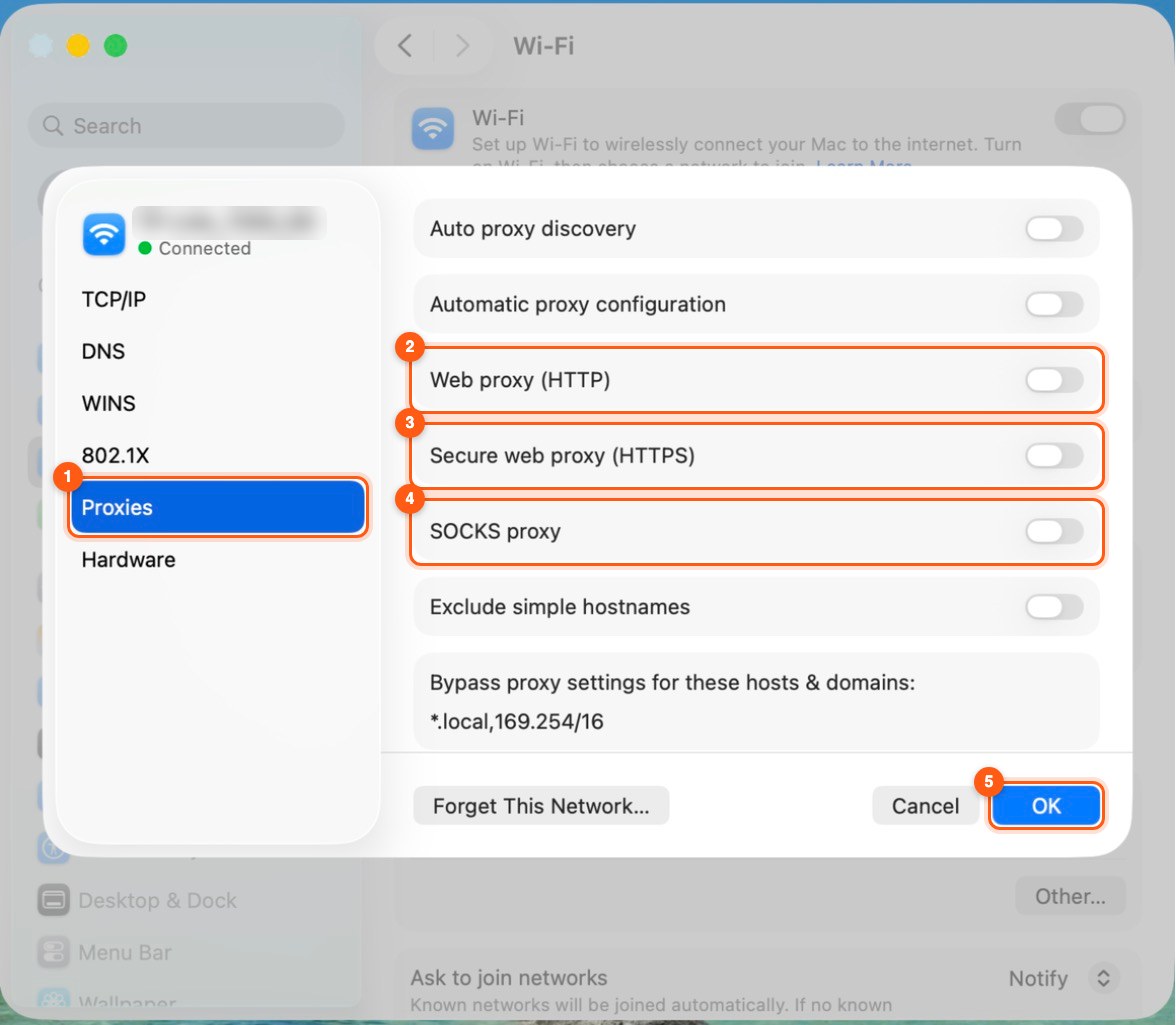
Step 4. Enter the username and password
Tick the option that the proxy server requires a password and enter your plan username and password for both items. Click OK.
Step 5. Restart Safari
Quit and reopen Safari so the settings are sure to apply.
Step 6. Check that it works
Open the My IP page: it should show the proxy's IP address and country, not yours. If the connection fails, double-check the port and protocol, and look up error codes on the Error codes page.
What a proxy set through Safari applies to
Safari on a Mac uses the system network settings. A proxy turned on from Safari applies to all programs that read these settings: Chrome, Mail, the App Store, and system updates. All of them spend your plan's traffic.
The setting is tied to a connection. If you set the proxy for Wi-Fi and then plug in a cable, Safari will go online directly: the proxy has to be set for the second connection too.
If Safari does not open sites
- Only one option is turned on. You need both: "Web proxy (HTTP)" and "Secure web proxy (HTTPS)". Without the second one, HTTPS sites bypass the proxy.
- The username and password are not entered in both options. Each option stores them separately.
- macOS fills in an old password. After you change the plan password, delete the proxy entry in the Keychain Access app and enter the new one.
- A VPN is on. It intercepts traffic before the proxy does. Turn it off while you work.
- The plan has run out of traffic. Check the remaining traffic in your dashboard.
How to turn it off
Open the same settings and clear the checkboxes for both proxy options. The server and port will stay in the fields. If you need the proxy in the browser only rather than in the whole system, Firefox with its own network settings is more convenient: see the guide for Firefox.
FAQ
Can I set a proxy only for Safari?
No, Safari always uses the system proxy, so it applies to every app that follows the system settings. To use a proxy in one browser only, use Firefox with its own settings or an extension such as SwitchyOmega or FoxyProxy.
Does SOCKS5 with a username and password work?
In the system settings only an HTTP proxy with a password works reliably. Use port 823 or a sticky 10000–20000 port as HTTP; for SOCKS5 switch on the IP whitelist.
Does the proxy work in a Safari Private window?
Yes. A Private window uses the same system network settings.
Safari shows the proxy IP, but the site still detects my city. Why?
The site may be using geolocation that you allowed earlier, as well as the system time zone and language. Deny the site access to your location in the Safari settings and run the <a href="/en/tools/webrtc-leak-test">WebRTC leak test</a>.