- Host
- gw.prokso.com
- Port
- 823 HTTP · 824 SOCKS5 — new IP per request · 10000–20000 sticky session, HTTP(S) and SOCKS5
- Username and password
- in your dashboard, on the plan page
Your dashboard generates ready-made lines in the format you need: choose the country, IP type and protocol.
- Host gw.prokso.com, ports 823 (HTTP), 824 (SOCKS5), 10000–20000 (sticky sessions, HTTP or SOCKS5)
- The username and password are in your dashboard on the plan page
- After setup, check your IP on the My IP page
A step-by-step guide to connecting Prokso proxies in Microsoft Edge. It takes a few minutes.
Step 1. Get the proxy details from your dashboard
Open your plan and copy the host gw.prokso.com, port, username and password. Port 823 is HTTP and 824 is SOCKS5 (both give a new IP for every request); ports 10000–20000 keep one IP (sticky session) for up to 120 minutes and work as both HTTP and SOCKS5 (each port is a separate address). Set the country in the username: username__cr.ua.

Step 2. Open the system proxy settings
Edge uses the system proxy. In Edge open Settings → System and performance → System and click Open proxy settings — the system window opens (on Windows, Settings → Proxy; on a Mac, Network → Proxies).
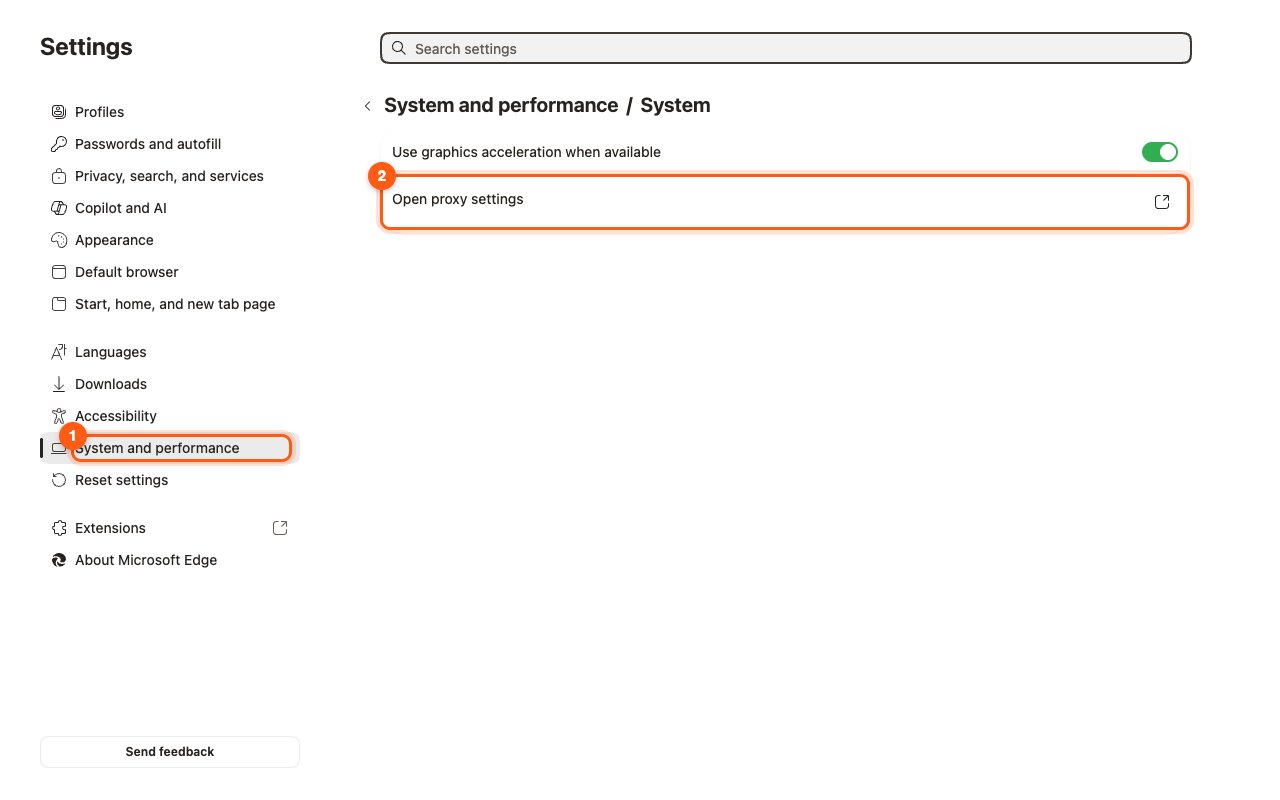
Step 3. Enter the address and port
Under manual proxy setup turn on Use a proxy server, enter the address gw.prokso.com and port 823 (or a sticky port 10000–20000 if you need one IP) and save.
Step 4. Enter the username and password
When you open the first website, Edge asks for the proxy username and password — paste them from your dashboard. If the prompt doesn't appear, use the IP whitelist.
Step 5. Check that it works
Open the My IP page: it should show the proxy's IP address and country, not yours. If the connection fails, double-check the port and protocol, and look up error codes on the Error codes page.
Edge and the system proxy
Edge does not store the proxy itself: the button in its settings opens the Windows settings. Everything you turn on there will start to apply to the other programs that read the system settings. So a proxy turned on "for Edge" spends your plan's traffic on Windows updates and on cloud drives as well.
If you need the proxy in the browser only, set it up through an extension: Edge supports extensions from the Chrome store, including SwitchyOmega.
If Edge does not open sites through the proxy
- The login prompt did not appear. Turn on the IP whitelist (no password) in your dashboard or set the proxy through an extension, where the username and password are entered in advance.
- ERR_PROXY_CONNECTION_FAILED. Edge could not reach the proxy: check the address and port. A breakdown is on the error page.
- ERR_TUNNEL_CONNECTION_FAILED. The proxy refused the connection, usually because of the username, the password, or because the traffic ran out. More details are on the error page.
- Port 824 is entered. That is SOCKS5, while the Windows system proxy works as HTTP. Use 823 or a sticky port.
- A VPN is on. It intercepts the connection before the proxy does. Turn it off while you work.
When you are done
Turn off the "Use a proxy server" switch in the Windows settings. The address and port will stay in the fields, and next time a single click is enough. While the proxy is on, everything that uses the system settings goes through it.
FAQ
Can I set a proxy only for Edge?
No, Edge always uses the system proxy, so it applies to every app that follows the system settings. To use a proxy in one browser only, use Firefox with its own settings or an extension such as SwitchyOmega or FoxyProxy.
Does SOCKS5 with a username and password work?
In the system settings only an HTTP proxy with a password works reliably. Use port 823 or a sticky 10000–20000 port as HTTP; for SOCKS5 switch on the IP whitelist.
Does the proxy work in InPrivate mode?
Yes, InPrivate uses the same system proxy. Extensions are turned off in InPrivate by default, so a proxy set through an extension will not work there until you allow it in the extension's settings.
The site sees the proxy but shows content for my country. Why?
A site takes more than the IP into account: the browser language, the time zone, and cookies are still yours. Open the site in a clean Edge profile and run the <a href="/en/tools/webrtc-leak-test">WebRTC leak test</a>.