- Host
- gw.prokso.com
- Port
- 823 HTTP · 824 SOCKS5 — new IP per request · 10000–20000 sticky session, HTTP(S) and SOCKS5
- Username and password
- in your dashboard, on the plan page
Your dashboard generates ready-made lines in the format you need: choose the country, IP type and protocol.
- Host gw.prokso.com, ports 823 (HTTP), 824 (SOCKS5), 10000–20000 (sticky sessions, HTTP or SOCKS5)
- The username and password are in your dashboard on the plan page
- After setup, check your IP on the My IP page
A step-by-step guide to connecting Prokso proxies in SwitchyOmega. It takes a few minutes.
Step 1. Get the proxy details from your dashboard
Open your plan and copy the host gw.prokso.com, port, username and password. Port 823 is HTTP and 824 is SOCKS5 (both give a new IP for every request); ports 10000–20000 keep one IP (sticky session) for up to 120 minutes and work as both HTTP and SOCKS5 (each port is a separate address). Set the country in the username: username__cr.ua.

Step 2. Install the extension
Install Proxy SwitchyOmega (for recent Chrome versions, the compatible ZeroOmega fork) from the Chrome or Firefox extension store and open its options.
Step 3. Create a proxy profile
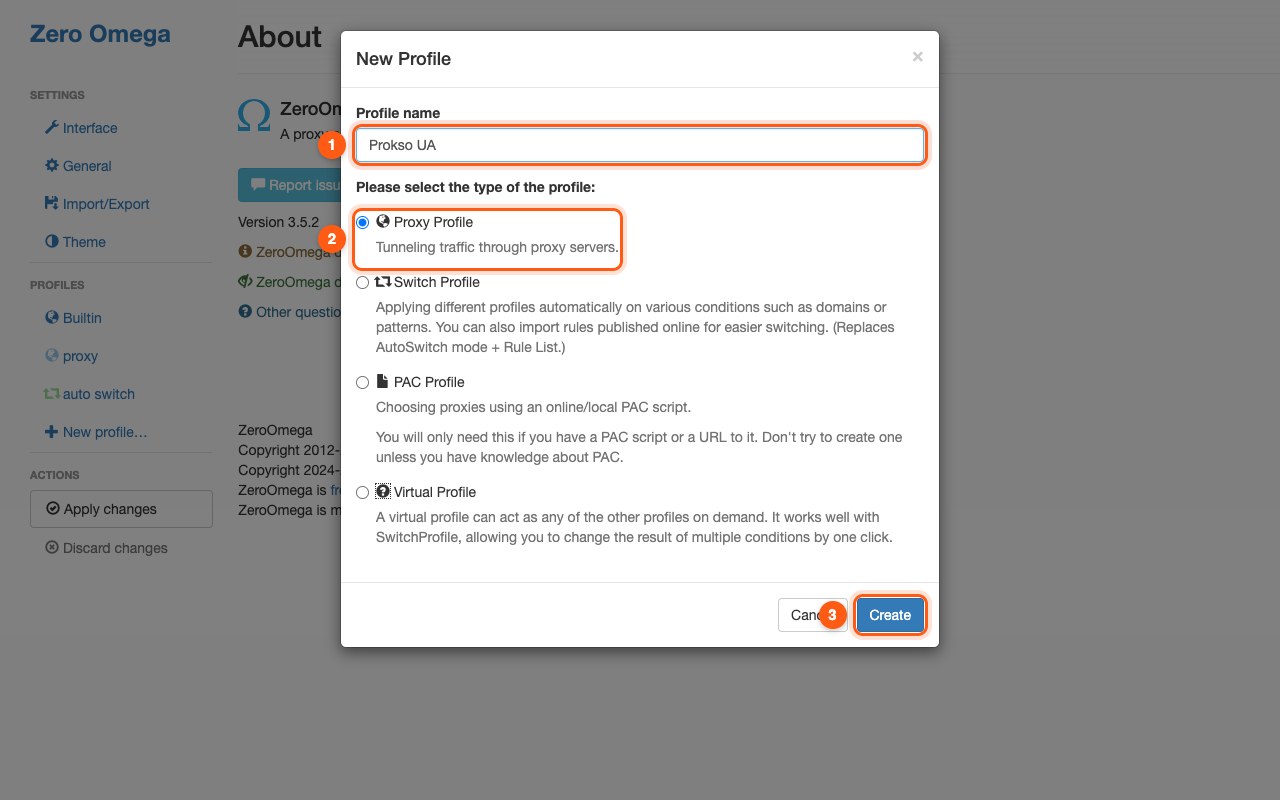
Click New profile, name it, for example Prokso UA, and choose the Proxy Profile type.
Step 4. Enter the server
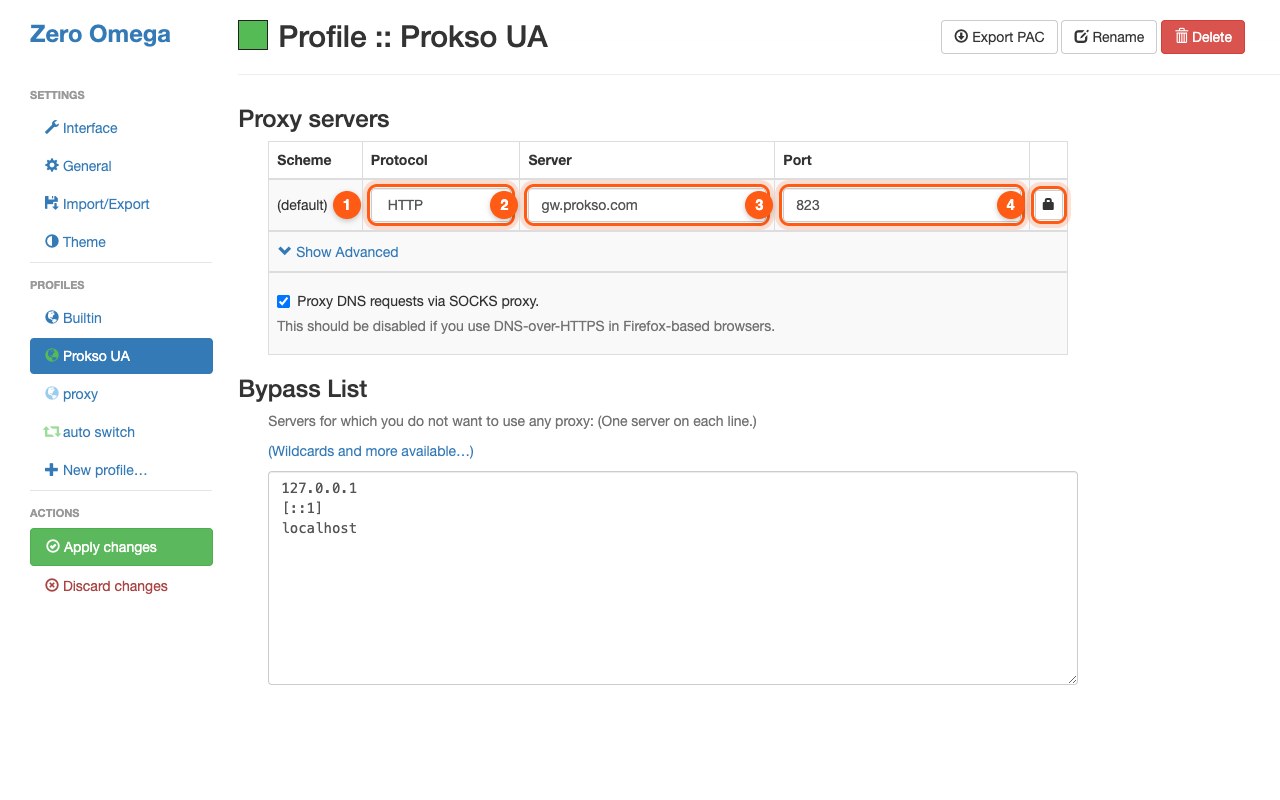
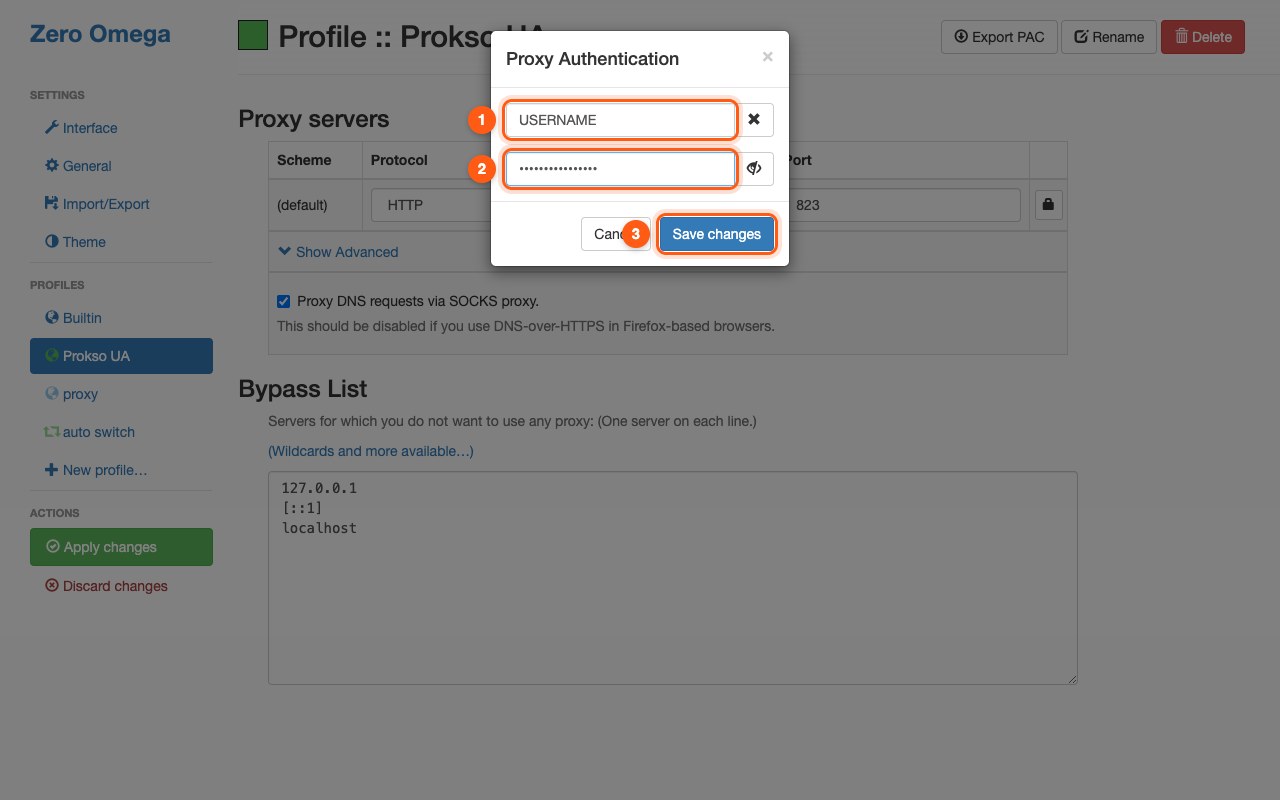
Protocol HTTP, server gw.prokso.com, port 823 or a sticky port 10000–20000. Click the lock icon on the right and enter the username and password from your dashboard.
Step 5. Apply and switch on
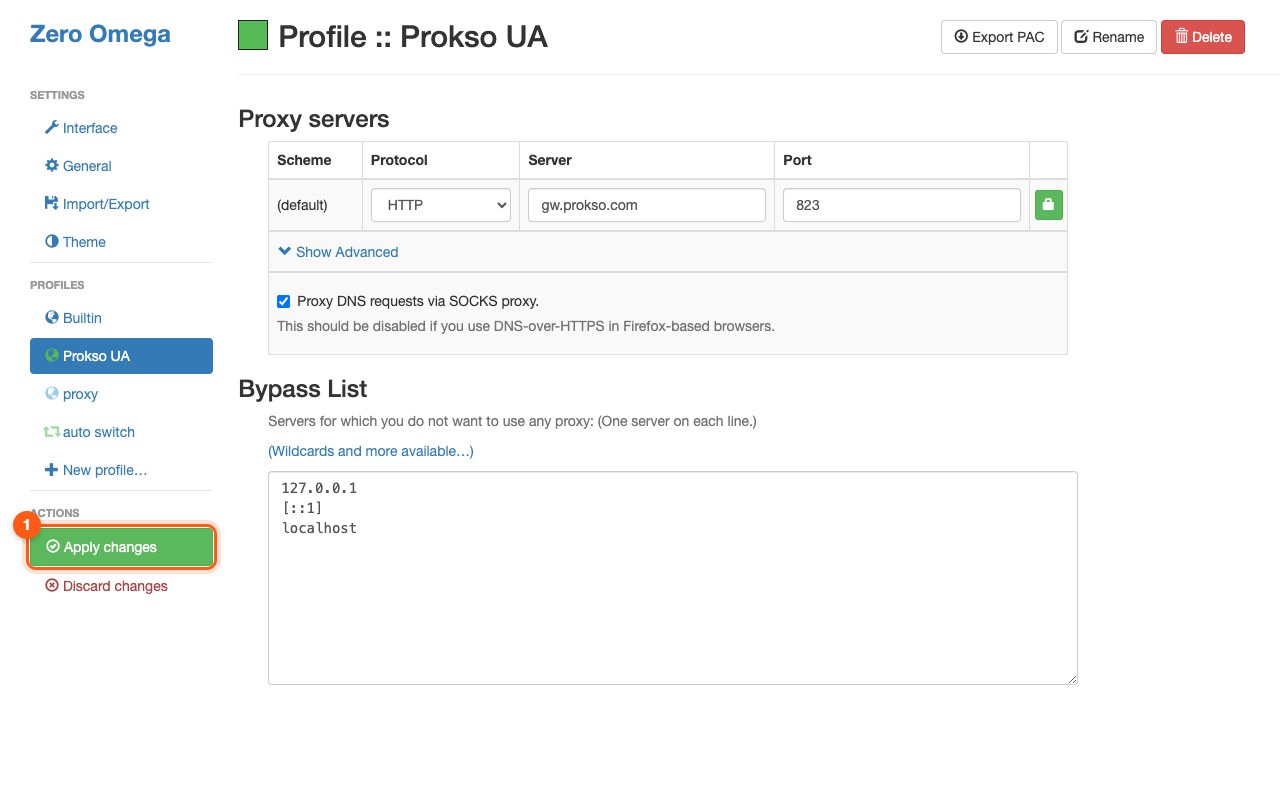
Click Apply changes, then the extension icon in the browser toolbar and choose your profile. To turn the proxy off, choose Direct.
![The extension menu: the Prokso UA profile turns the proxy on (1), [Direct] turns it off (2)](/static/guides/en/zo-popup.jpg)
Step 6. Check that it works
Open the My IP page: it should show the proxy's IP address and country, not yours. If the connection fails, double-check the port and protocol, and look up error codes on the Error codes page.
Why you need an extension when the system has a proxy
The extension sets a proxy for the browser only: the system and the other programs work directly and do not spend your plan's traffic. The username and password are stored in the extension's profile, so the authentication prompt does not appear.
The second advantage is profiles. You can create a profile per country or per proxy type and switch from the toolbar icon without opening the settings.
Auto switch mode
A profile of the "Switch Profile" type sends only the sites from the rule list through the proxy, and the rest go directly. This way only what you really need goes through the proxy, and traffic is used more sparingly.
Rules are set by site address. Check the result on the My IP page only after you have added its domain to the rules, otherwise it will open directly and show your own address.
If the extension does not work
- The changes are not applied. After any edit you need to click "Apply changes".
- The wrong profile is selected. Click the extension icon: the active profile is marked.
- The SOCKS5 protocol with a username. Chrome does not pass a SOCKS5 password from extensions. Choose HTTP.
- Another extension is interfering. Only one extension can set the proxy in the browser. Turn off VPN extensions and other proxy managers.
- The extension was disabled by the browser. Chrome disables old versions on its own. Install a compatible version.
FAQ
Why doesn't SOCKS5 work with a username and password?
Chrome doesn't pass a SOCKS5 password from extensions. Use HTTP port 823 or the IP whitelist.
Does the extension work in Incognito mode?
Only if you allowed it in the extension's settings in the browser. By default extensions are turned off in Incognito, and the window goes online directly.
Can I move profiles to another computer?
Yes, the extension's settings have export and import. The file may include the proxy username and password, so do not send it unprotected.
How do I set the country?
The country is written into the username. Generate a string for the country you need in your dashboard and use the username from it in a separate profile.