- Host
- gw.prokso.com
- Port
- 823 HTTP · 824 SOCKS5 — new IP per request · 10000–20000 sticky session, HTTP(S) and SOCKS5
- Username and password
- in your dashboard, on the plan page
Your dashboard generates ready-made lines in the format you need: choose the country, IP type and protocol.
- Host gw.prokso.com, ports 823 (HTTP), 824 (SOCKS5), 10000–20000 (sticky sessions, HTTP or SOCKS5)
- The username and password are in your dashboard on the plan page
- After setup, check your IP on the My IP page
A step-by-step guide to connecting Prokso proxies in FoxyProxy. It takes a few minutes.
Step 1. Get the proxy details from your dashboard
Open your plan and copy the host gw.prokso.com, port, username and password. Port 823 is HTTP and 824 is SOCKS5 (both give a new IP for every request); ports 10000–20000 keep one IP (sticky session) for up to 120 minutes and work as both HTTP and SOCKS5 (each port is a separate address). Set the country in the username: username__cr.ua.

Step 2. Install the extension
Install FoxyProxy from the Chrome Web Store or Firefox Add-ons. Click the extension icon and open Options.
Step 3. Add the proxy
On the Proxies tab click Add. Type: HTTP, host: gw.prokso.com, port: 823 for a new IP per request or 10000–20000 for a sticky one. Enter the username and password in the Username and Password fields and click Save.

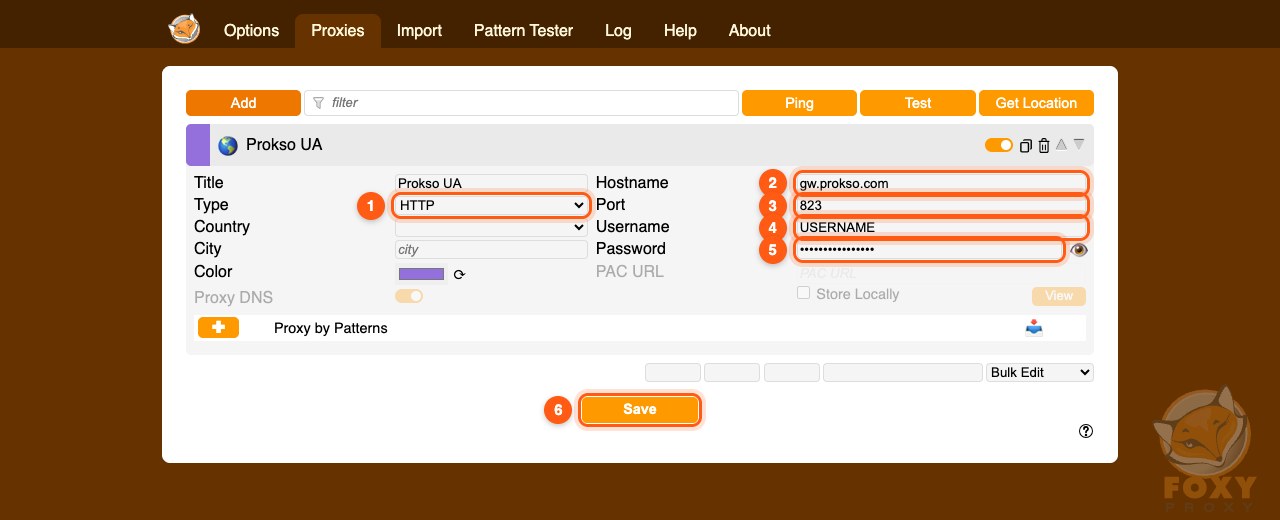
Step 4. Turn the proxy on
Click the FoxyProxy icon and pick the proxy you added. All browser traffic will go through it. To turn it off, choose Disable.
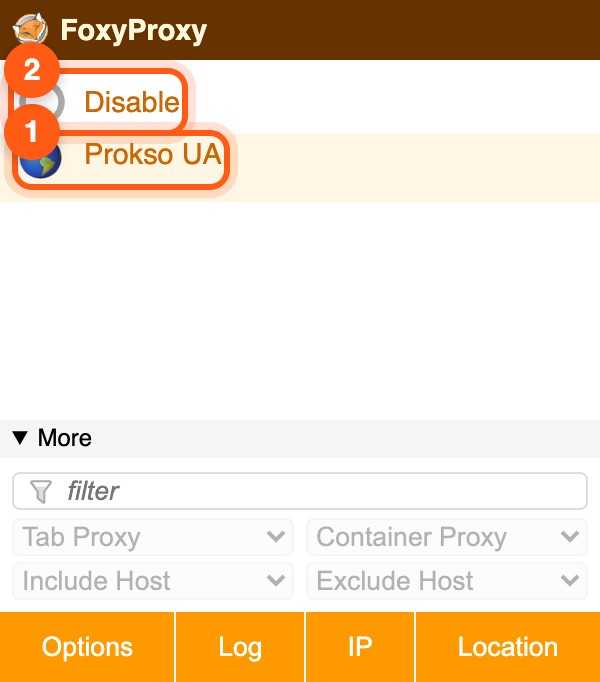
Step 5. Check that it works
Open the My IP page: it should show the proxy's IP address and country, not yours. If the connection fails, double-check the port and protocol, and look up error codes on the Error codes page.
A proxy in the browser only
FoxyProxy sets a proxy for the browser and does not change the system settings: the other programs work directly and do not spend your plan's traffic. The username and password are stored in the extension.
You can keep several proxies in the list and switch between them from the extension icon. This is convenient when you need different countries: the country is written into the username, so each entry is the same host with a different username.
Patterns: only the sites you need go through the proxy
In "Proxy by Patterns" mode only the sites that match the patterns go through the proxy, and the rest open directly. This saves traffic: video and mail will not go through the plan.
When you check the result, remember: the My IP page will show the proxy address only if its domain is added to the patterns too.
If FoxyProxy does not work
- SOCKS5 with a username in Chrome. It is not supported, so choose the HTTP type. In Firefox, SOCKS5 with a username works.
- "Disable" mode is selected. Click the icon and select a proxy or the patterns mode.
- The pattern does not match the address. The site opened directly. Check that the pattern covers subdomains as well.
- Another extension is interfering. A VPN extension or a second proxy manager takes over control.
- A typo in the host or port. Test the string in the proxy checker.
FAQ
Can I route only some sites through the proxy?
Yes. Choose Proxy by Patterns in the extension menu and add URL patterns to the proxy. Other sites will open directly.
The browser asks for a username and password in a pop-up. Is that normal?
It happens when the username and password fields in the proxy settings are empty. Fill them in FoxyProxy and the pop-up goes away.
Does FoxyProxy work in a private window?
Only if the extension is allowed to run in private windows. You turn this on in the extension's settings in the browser.
How does FoxyProxy differ from the proxy in the Firefox settings?
The built-in settings store one proxy and cannot handle SOCKS5 with a password. FoxyProxy stores several proxies, switches between them in one click, and can send only selected sites through the proxy.