- Host
- gw.prokso.com
- Port
- 823 HTTP · 824 SOCKS5 — new IP per request · 10000–20000 sticky session, HTTP(S) and SOCKS5
- Username and password
- in your dashboard, on the plan page
Your dashboard generates ready-made lines in the format you need: choose the country, IP type and protocol.
- Host gw.prokso.com, ports 823 (HTTP), 824 (SOCKS5), 10000–20000 (sticky sessions, HTTP or SOCKS5)
- The username and password are in your dashboard on the plan page
- After setup, check your IP on the My IP page
A step-by-step guide to connecting Prokso proxies on Linux (Ubuntu). It takes a few minutes.
Step 1. Get the proxy details from your dashboard
Open your plan and copy the host gw.prokso.com, port, username and password. Port 823 is HTTP and 824 is SOCKS5 (both give a new IP for every request); ports 10000–20000 keep one IP (sticky session) for up to 120 minutes and work as both HTTP and SOCKS5 (each port is a separate address). Set the country in the username: username__cr.ua.

Step 2. System proxy in GNOME
Open Settings → Network → Network Proxy and choose Manual. For HTTP and HTTPS enter gw.prokso.com and port 823 or a sticky 10000–20000 port; for SOCKS use a sticky 10000–20000 port (one IP) or 824 (a new IP for every request). There are no username and password fields here, so add your IP to the IP whitelist (no password) block on your plan page in the dashboard.
Step 3. Proxy for the terminal
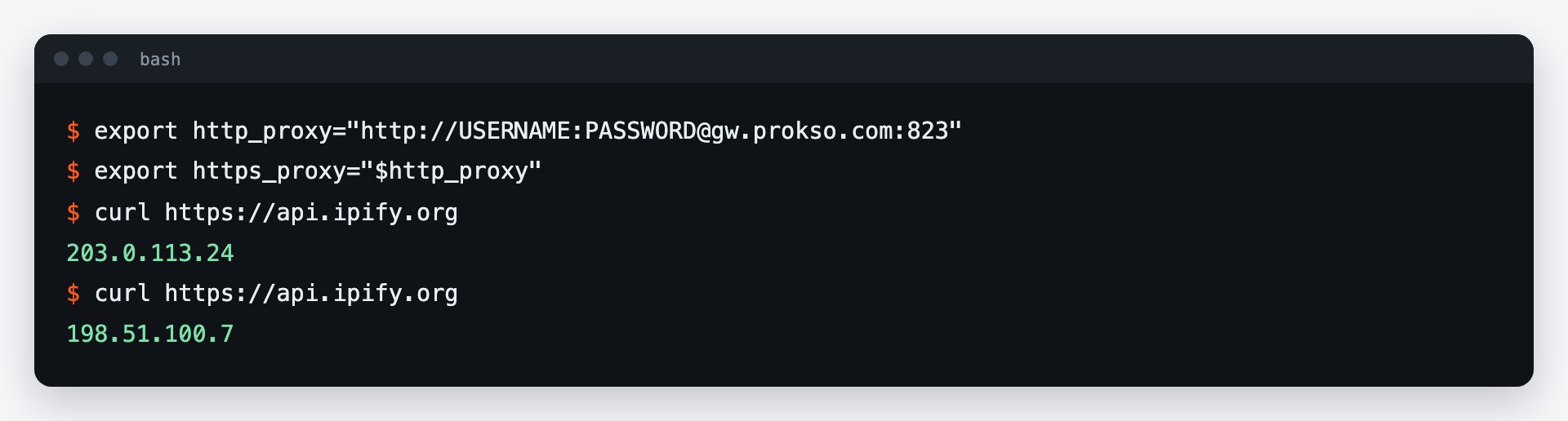
Terminal tools (curl, wget, apt, pip) read the proxy from the http_proxy and https_proxy variables. The username and password go right into the address. The code below works until you close the terminal.
# proxy for the current terminal session
export http_proxy="http://USERNAME:PASSWORD@gw.prokso.com:823"
export https_proxy="$http_proxy"
export HTTP_PROXY="$http_proxy"
export HTTPS_PROXY="$http_proxy"

# check
curl https://api.ipify.org
Step 4. Make it permanent
Add these lines to ~/.bashrc. If your password contains @, : or #, encode them (e.g. @ → %40), or the address will break. The example uses a sticky port (10001) so the IP stays the same across commands.
# add to ~/.bashrc so every new terminal uses it
echo 'export http_proxy="http://USERNAME:PASSWORD@gw.prokso.com:10001"' >> ~/.bashrc
echo 'export https_proxy="$http_proxy"' >> ~/.bashrc
source ~/.bashrc

# turn the proxy off in the current session
unset http_proxy https_proxy HTTP_PROXY HTTPS_PROXY
Step 5. Check in the terminal
In the same terminal run curl https://api.ipify.org — it should return the proxy's IP, not yours. Check the GNOME system proxy on the My IP page in Chrome, or in Firefox set to use system proxy settings.
Two different proxies: for windows and for the terminal
On Linux these are two independent settings. The GNOME system proxy is used by graphical programs. The terminal does not see it: commands take the proxy from environment variables. So "it works in the browser but not in the terminal" is a normal situation, not an error.
The http_proxy and https_proxy variables are understood by curl, wget, pip, git, and most utilities. Some programs read only the uppercase variant, so the examples set both.
If commands do not go through the proxy
- The variables are set in a different terminal.
exportapplies only in the session where it was run. Check with theecho $https_proxycommand. - Special characters in the password. The characters
@,:, and#in the address must be encoded, otherwise the address is parsed incorrectly. - The no_proxy variable is set. Addresses listed in it go directly. See its value with the
echo $no_proxycommand. - The command is run with sudo. By default sudo does not pass environment variables on, so use
sudo -E. - The program ignores the variables. Some have their own proxy option in the settings or on the command line.
Services and Docker
systemd services and Docker do not read ~/.bashrc. For them the proxy is set in their own settings: in the service file or in the Docker configuration. An export in the terminal does not apply to them.
How to keep the password out of sight
An address with the username and password in ~/.bashrc is stored in plain text, and a command with the password stays in the terminal history. On a shared server, turn on access by IP instead of a password: add the server's address to the "IP whitelist (no password)" block on the plan page and use the proxy address without a username.
FAQ
Why doesn't my browser use the system proxy?
Firefox has its own network settings — choose Use system proxy settings there. Chrome and Chromium pick up the GNOME system proxy automatically.
How do I send the terminal through SOCKS5?
Set <code>export all_proxy="socks5h://USERNAME:PASSWORD@gw.prokso.com:824"</code>. For one IP swap 824 for a sticky 10000–20000 port, which accepts SOCKS5 too. curl and many other tools understand the variable, but not all — keep HTTP for apt.
How do I check that a request went through the proxy?
Run <code>curl https://prokso.com/ip</code>: it returns the address that sites see. It should differ from your computer's address.
Does the proxy work for git?
For repositories over HTTPS, yes: git reads <code>https_proxy</code>. Addresses of the form <code>git@...</code> use SSH, and the variables do not apply to it.