- Host
- gw.prokso.com
- Port
- 823 HTTP · 824 SOCKS5 — new IP per request · 10000–20000 sticky session, HTTP(S) and SOCKS5
- Username and password
- in your dashboard, on the plan page
Your dashboard generates ready-made lines in the format you need: choose the country, IP type and protocol.
- Host gw.prokso.com, ports 823 (HTTP), 824 (SOCKS5), 10000–20000 (sticky sessions, HTTP or SOCKS5)
- The username and password are in your dashboard on the plan page
- Check the IP in the response of the proxied request itself: the My IP page in a browser does not test your script
A step-by-step guide to connecting Prokso proxies in Postman. It takes a few minutes.
Step 1. Get the proxy details from your dashboard
Open your plan and copy the host gw.prokso.com, port, username and password. Port 823 is HTTP and 824 is SOCKS5 (both give a new IP for every request); ports 10000–20000 keep one IP (sticky session) for up to 120 minutes and work as both HTTP and SOCKS5 (each port is a separate address). Set the country in the username: username__cr.ua.

Step 2. Open the proxy settings
In the Postman desktop app click the settings icon in the header, choose Settings and open the Proxy tab.
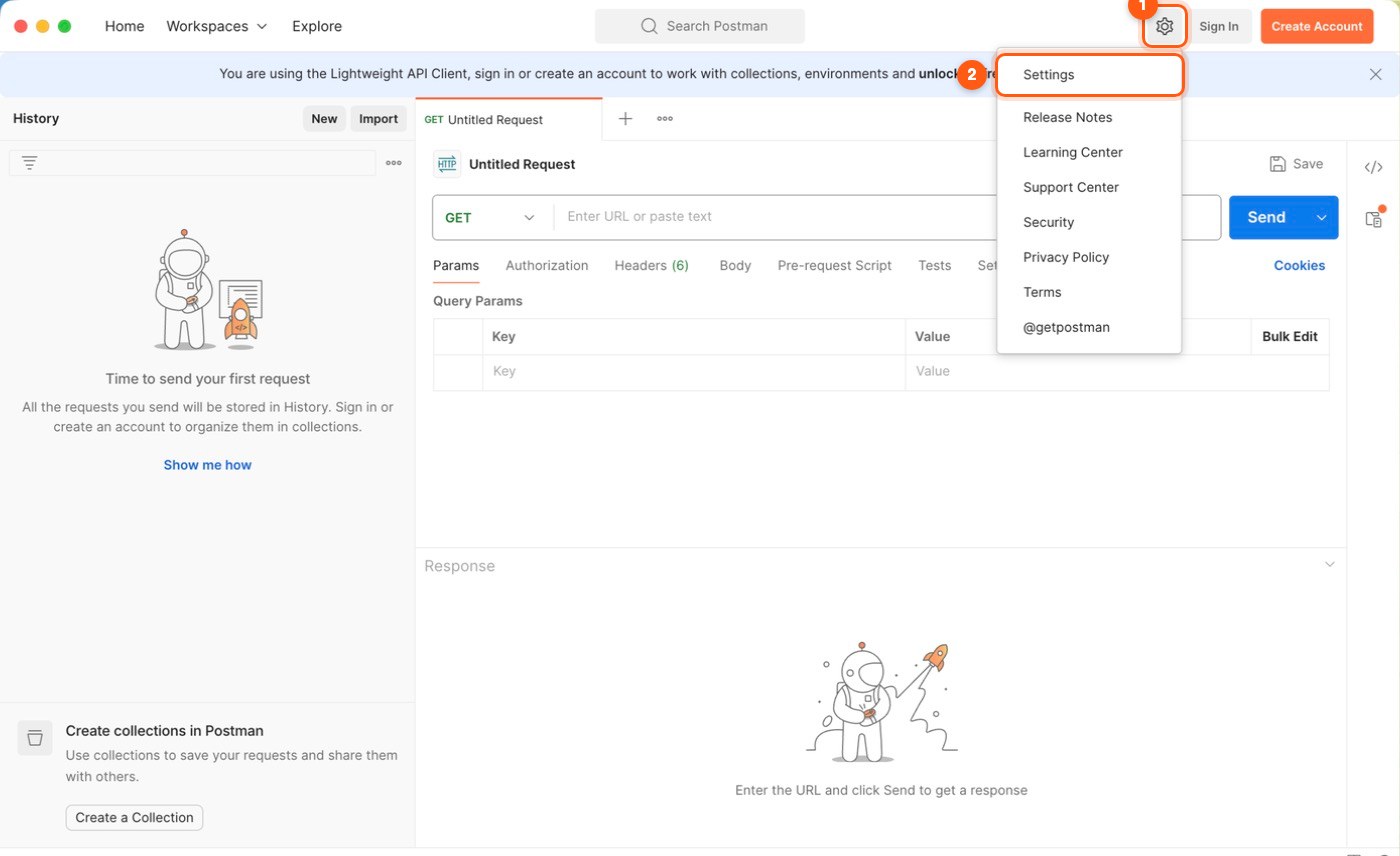
Step 3. Turn on a custom proxy
Tick Add a custom proxy configuration (in older versions, the Use custom proxy configuration switch). Keep HTTP and HTTPS selected, pick HTTP or SOCKS5 and enter server gw.prokso.com with a port: a sticky 10000–20000 port for one IP (works with both types), or 823 (HTTP) or 824 (SOCKS5) for a new IP on every request.
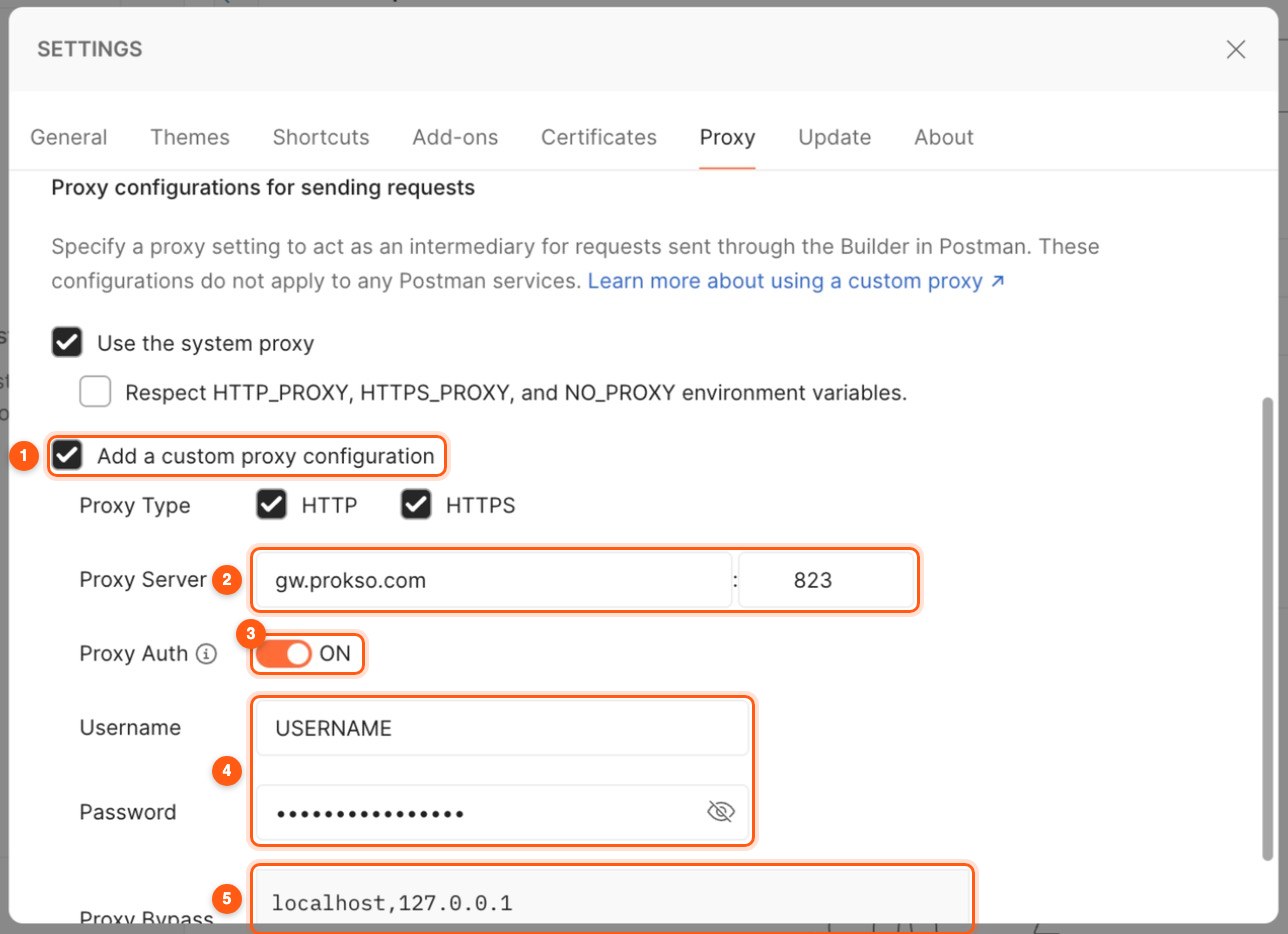
Step 4. Add the username and password
Turn on Proxy Auth and enter the username and password from the plan page. Hosts that should go direct (for example localhost) go comma-separated into the Proxy Bypass field.
Step 5. Send a test request
Create a GET request to https://api.ipify.org and click Send. The response should show the proxy IP, not yours.
Custom proxy and system proxy
The Postman settings have two independent switches: a custom proxy and the system proxy. If both are on, the custom one is applied. If the custom one is off and the system one is on, Postman takes the proxy from the operating system settings, and requests may go somewhere other than where you expected. For a predictable result, leave only the custom one on.
If a request does not go through
- 407 Proxy Authentication Required. "Proxy auth" is not turned on, or the username and password were entered with a space.
- Error: tunneling socket could not be established. Postman could not open a connection through the proxy: check the port and the type. 823 is HTTP only, 824 is SOCKS5 only.
- ECONNREFUSED. There is a typo in the server or the port.
- A request to a local API stopped working. It went through the proxy too. Add
localhost,127.0.0.1to the "Bypass" field.
The details of a request are visible in the Postman console: it shows which proxy the request went through and what response came back.
Country and session for tests
To see how an API responds from different countries, change the username: the country is written in it, for example USERNAME__cr.de. The server and port stay the same. For a series of requests from one IP, take a sticky port in the 10000-20000 range.
Keep in mind that the proxy setting is shared by the whole app. When you are done, turn it off: otherwise your ordinary work requests will go through the proxy too, spending your plan's traffic.
FAQ
Does this work in Postman on the web?
Custom proxy settings live in the desktop app. The browser version sends requests differently, so use desktop Postman to work through the proxy.
Why is the IP different every time?
You're on port 823 or 824, which give a new IP per request. For one IP during testing pick a port from 10000–20000 (for HTTP or SOCKS5).
Does the proxy apply to collection runs?
Yes. The Collection Runner in the app uses the same proxy settings as ordinary requests.
How do I use a proxy in Newman?
Newman does not read the app's settings. Set the <code>HTTP_PROXY</code> and <code>HTTPS_PROXY</code> environment variables before you launch it.