Static proxies: ordering and renewal
A permanent IP address for a week or a month: how to order it, where to get the line for your app and how to keep the same address.
1. Order an address
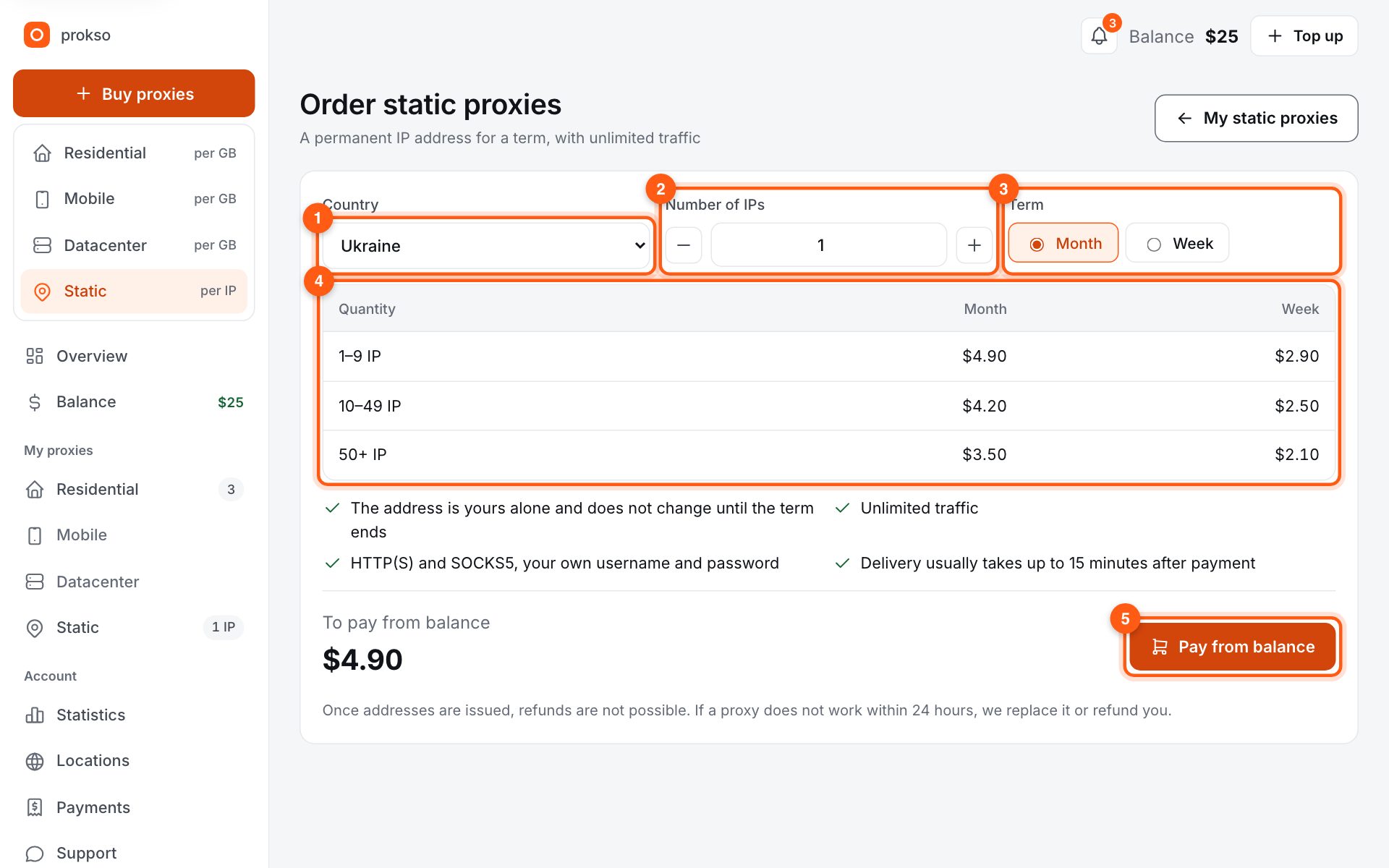
In the dashboard menu, click “Buy proxies” and choose “Static”. Set the country (1), the number of addresses (2) and the term — a month or a week (3). The price per address depends on the quantity in the order — see the table (4). Check the total and click “Pay from balance” (5).
If your balance is too low, a top-up for the missing amount opens, and the order is placed automatically after payment.
2. Wait for delivery
After payment the order page opens with four stages: payment received, preparing addresses, setting up access, done. Delivery usually takes up to 15 minutes. You do not need to refresh the page — it updates by itself, and the ready addresses appear in the “Static” section.
The email saying the proxies are ready is sent if you have confirmed your email address.
3. Copy the line for your app
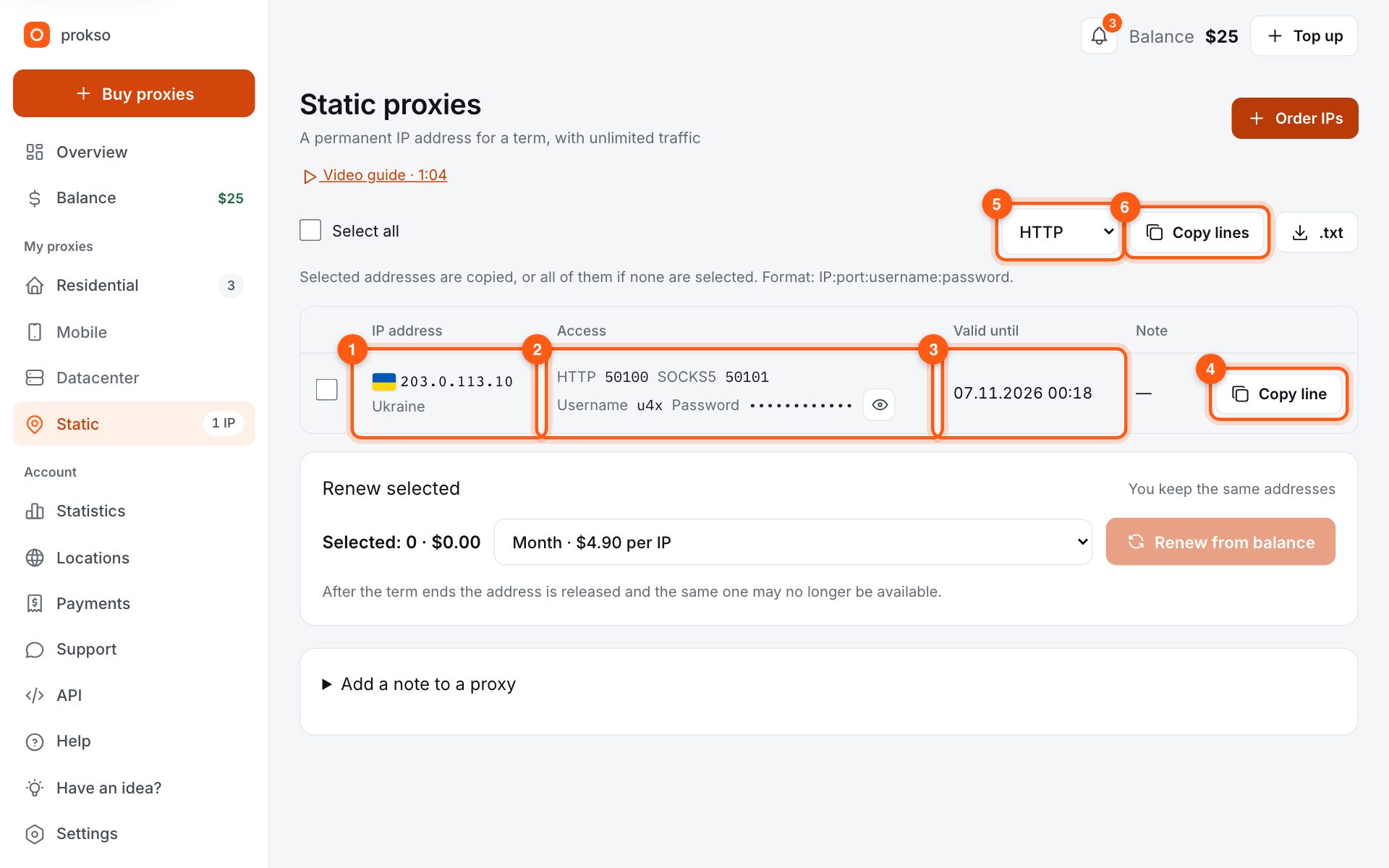
In the “Static” section every address is a separate table row: the IP address and country (1), the HTTP and SOCKS5 ports, username and password (2), and the date the address is valid until (3). The “Copy line” button (4) copies the address as IP:port:username:password.
The protocol for copying is selected at the top (5). The “Copy lines” button (6) and the “.txt” button next to it take the selected addresses, or all of them if none are selected.
Where to paste the line — see the setup guides.
4. Renew the address
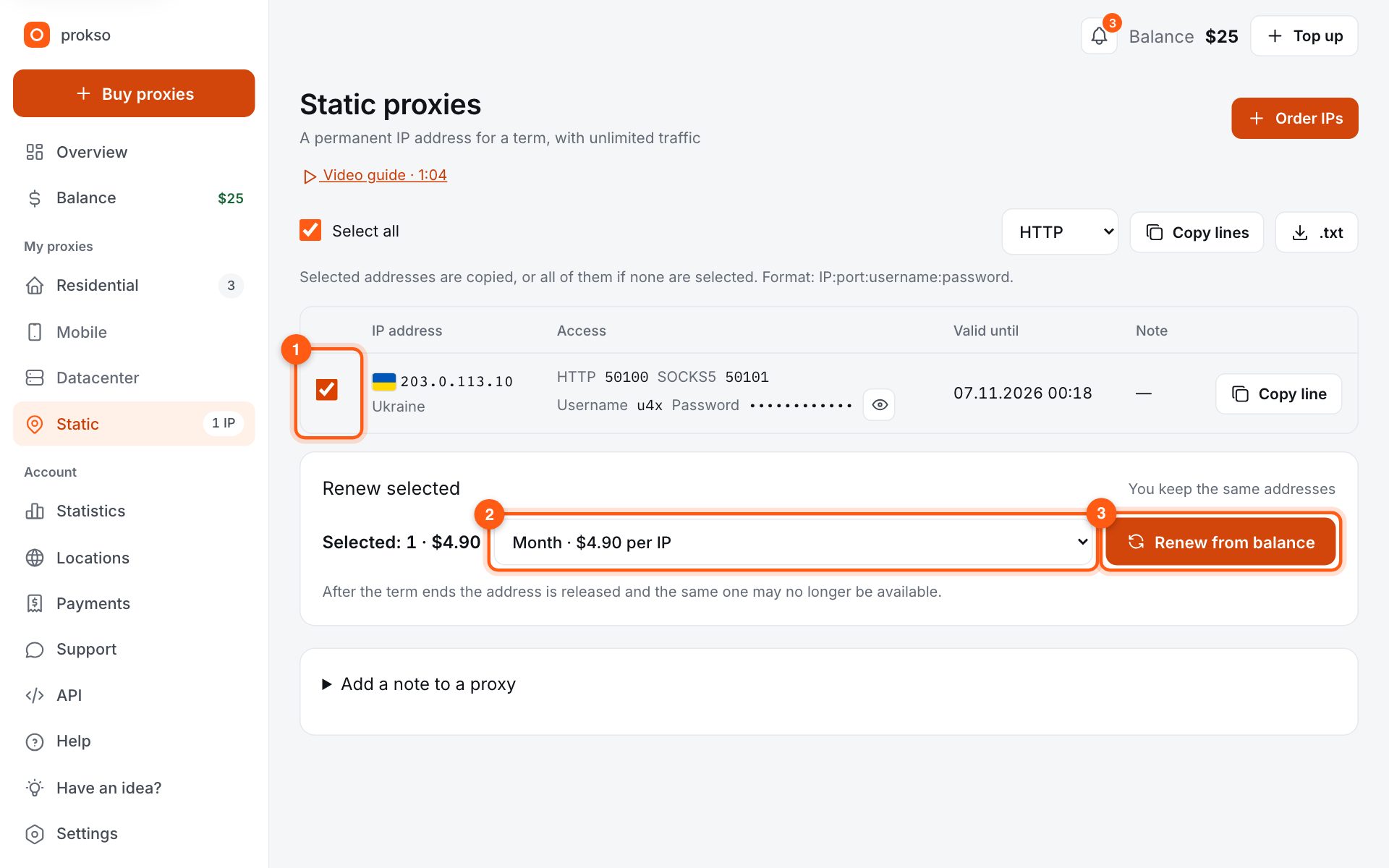
To keep the address, renew it before the term ends. Select the address (1), choose a term (2) and click “Renew from balance” (3). The address stays the same.
After the term ends the address is released, and the same one may no longer be available.
5. Good to know
- Traffic on static proxies is unlimited.
- The address is yours alone and does not change until the term ends.
- Once addresses are issued, refunds are not possible. If a proxy does not work within 24 hours, we replace it or refund you.